
Published on: 30/08/2023 · Last updated on: 25/06/2026
Assessment Type: Coursework
Below is the TEL recommended workflow for a formative Group Assignment. Please find recommendations for a summative Group Assignment. The guidance provided is for general use.
Recommended workflow:
1. Check/Housekeep existing Groups
If Groups have previously been used in the unit, you may need to delete the old Groups first.
2. Create Groups/Groupings
Before you can create a Group Assignment, you will first need to create Groups and create a Grouping to house the groups.
3. Populate Groups with Students
Once you have made some Groups, there are currently two recommended approaches to adding students to them, for both approaches, consider group composition to avoid foreseeable barriers to participation. If you want to add the students yourself, you can follow the steps here to manually add students to Groups.
Alternatively you can set up the Group self-allocation tool so that your students can add themselves into Groups.
Level 1 Reasonable Adjustment4. Provide detailed information about the assessment
It’s important to provide all the necessary information for students about the assessment.This should include: the assessment brief (using the standardised template defined by your Faculty/School), marking criteria and/or rubric, and information on submission format, deadlines, and submission method, and/or assessment conditions. This includes information about the use of GenAI, for which there is further information and suggested assessment brief text on The Two-Lane Approach to GenAI Assessment Categorisation. This could be provided via a detailed resource such as a Moodle Page.
Level 1 Reasonable Adjustment4. Set up the assignment
After your students have been allocated to groups, set-up the group assignment. You MUST select the appropriate grouping for the assignment (this option will only appear once you have chosen “Yes” to “Students submit in groups”. Use the “Assessment Category” to flag the Assignment as ‘Formative’.
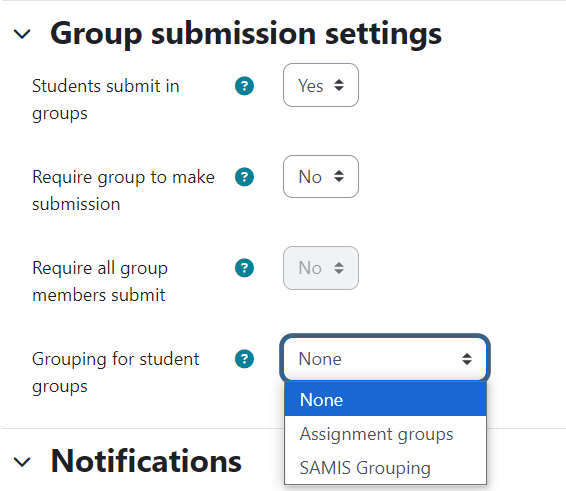
Use “Assessment Category” to flag the Assignment as ‘Formative’. Students can submit a range of files PDF/Word/PPT or specialist files, (or even online text), so make sure to specify the file type(s) you want them to use.
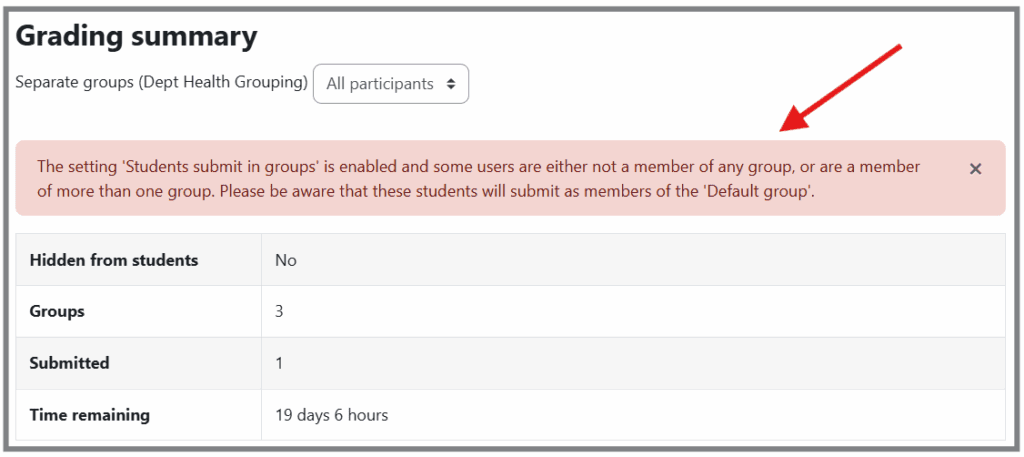
5. After the deadline, lock student submissions
After the deadline has passed, lock the student submissions to prevent any changes being made.
6. Provide feedback/annotations and marks on the submission
If you have used the standard Group Assignment settings, only one student will need to make a submission on behalf of the Group. From the markers point of view, the submission will appear against all members of a Group. You can choose to mark the submission of any one of the group members.
There are several different ways to provide feedback, however for text based assignment we recommend that you either – add feedback/annotations and marks online in the Moodle grading interface, or, use the batch upload/download and grading worksheet to return marks and feedback.
Once you have completed marking a submission, ensure that you apply marks and feedback to all members of the Group. Use of advanced marking and feedback approaches such as Marking Guides and Rubrics is also possible.
7. Release Marks and Feedback to Students with Marking Workflow
When you are ready to release marks and feedback to students, the simplest way to do this, and to send students a notification, is to use Marking Workflow. Please note that in order to release marks/feedback, you will also need to lift anonymity. Your students will now be able to review their marks and feedback in Moodle.
Notes on Archiving Policy
An archive snapshot of Moodle is taken every year on or around the 1st August, with previous versions of Moodle being available in the Moodle Archive. Any Assignments present in Moodle at the time of the snapshot will be available in the archive to any student or member of staff who was enrolled in the course at the time that the archive copy was made. If you don’t want assignment questions to be present in the archive copy of your unit, remember to remove them ahead of archiving taking place.