
Published on: 14/09/2023 · Last updated on: 25/06/2026
Assessment Type: In Class test
Follow these core recommendations for summative Quiz Activities to simplify question bank management and control the release of grades/feedback to students.
Recommended Workflow
1. Complete the Quiz Notification Form
If your summative Quiz is in the exam period, please use Inspera.
2. Create Questions in the Question Bank
You should create questions with a descriptive name in the Question Bank on the relevant Moodle course.
Options:
- You can also organise your questions into Categories.
- Before creating your questions, familiarise yourself with the different Moodle Quiz question types (e.g. MCQ, Numerical, Matching, etc).
3. Provide detailed information about the assessment
It’s important to provide all the necessary information for students about the assessment.This should include: the assessment brief (using the standardised template defined by your Faculty/School), marking criteria and/or rubric, and information on submission format, deadlines, and submission method, and/or assessment conditions. This includes information about the use of GenAI, for which there is further information and suggested assessment brief text on The Two-Lane Approach to GenAI Assessment Categorisation. This could be provided via a detailed resource such as a Moodle Page.
Level 1 Reasonable Adjustment4. Create the Quiz Activity
Create a new Quiz Activity and amend the following Settings:
- Under Description: add general instructions and information (this will be visible to students before the quiz starts)
- Under Timings: set the open, close times and duration of the quiz attempt
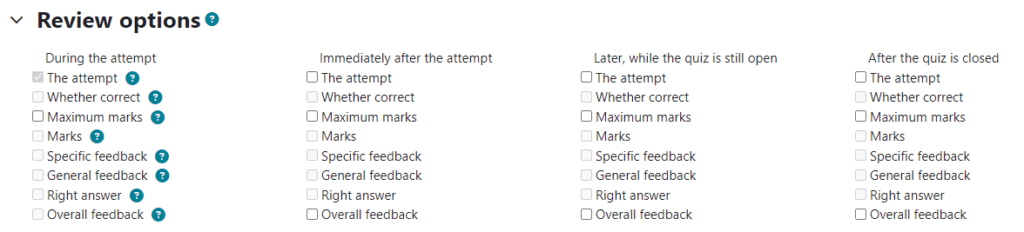
- Under Review options: uncheck ALL tick boxes. This ensures that no grades and feedback on the attempt automatically goes back to students.
5. Add questions to the Quiz
Once you have created the Quiz Activity, you now must populate it with the questions from the Question Bank.
To add questions to the Quiz, click the Activity, then the ‘Add question’ button. You then select “Add” > “ + from Question bank” to insert question(s).
You should preview the quiz to check the display of questions and the correct answers.
To add extra times or extensions, you need to add “user overrides” to amend the time limit and/or dates for students with a DAP or alternative arrangement.
6. Run the Quiz
Students attempt the Quiz on Moodle.
7. Review the quiz attempts
It is advised to review the quiz attempts to identify any errors with a question.
Option – if you have used the Essay question type, you will need to manually grade the response.
8. Distribute grades and feedback to students
In step 4, we prevented any grades and information going back to students. To release information to students, you will amend the “Review options” setting (click the Activity Settings Cog >”Edit Settings”). A minimal review option would be to let the students see their total marks only (but not their attempt or the questions) which can be achieved by checking “Maximum marks” and “Marks” under “After the quiz is closed” only.
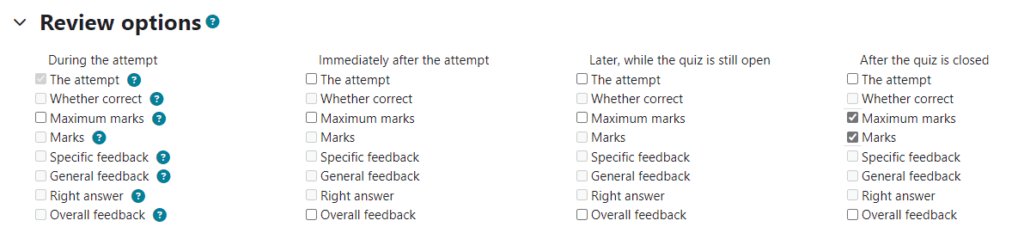
Optional: You may choose to release more information to students about the quiz attempt (e.g. what they put, specific feedback, etc.).
9. Unit convenor can transfer grades to SAMIS using Grade Transfer
Only the unit convenor (who has the Teacher + role in Moodle) can transfer the marks to SAMIS using Grade Transfer.