
Published on: 06/08/2024 · Last updated on: 06/07/2026
Pick an appropriate format
Why? Some students may prefer PDFs, but PDF is not usually the most accessible or flexible format for digital content. Formats such as Moodle Pages, Moodle Books, Word documents and PowerPoint files are often easier to access, customise and use with assistive technologies.
- Share an accessible source format, such as a Moodle Page, Moodle Book, Word document or PowerPoint file.
- Consider providing a PDF as an additional alternative format for learner who prefer it. If you are expecting your content to be printed or the formatting is essential to the content, then PDF may be an appropriate alongside an accessible version.
- If you create a PDF, export it from software that supports accessibility tags, such as Microsoft Word or PowerPoint.
Use a descriptive file name and title
Why? This helps individuals understand what the document topic is.
- Make sure the file has a unique, descriptive file name and title.
Use structured headings and layouts
Why? Assistive technology relies on headings to navigate information. Use heading ‘styles’ as opposed to paragraph text made large.
- Use built‑in heading styles to structure content. Never manually format text to create headings.
- In PowerPoint, use built‑in slide layouts. If you Insert other images or boxes, make sure to manually set the reading order.
See Structuring Accessible Content
Use readable text
Why? Text should be large to support viewing on a projector and print accessibility. Sans Serif fonts such as Arial and Calibri are more accessible than serif fonts such as Times New Roman. Serif fonts have ‘feet’ on the end of each letter which can make them less accessible to readers.
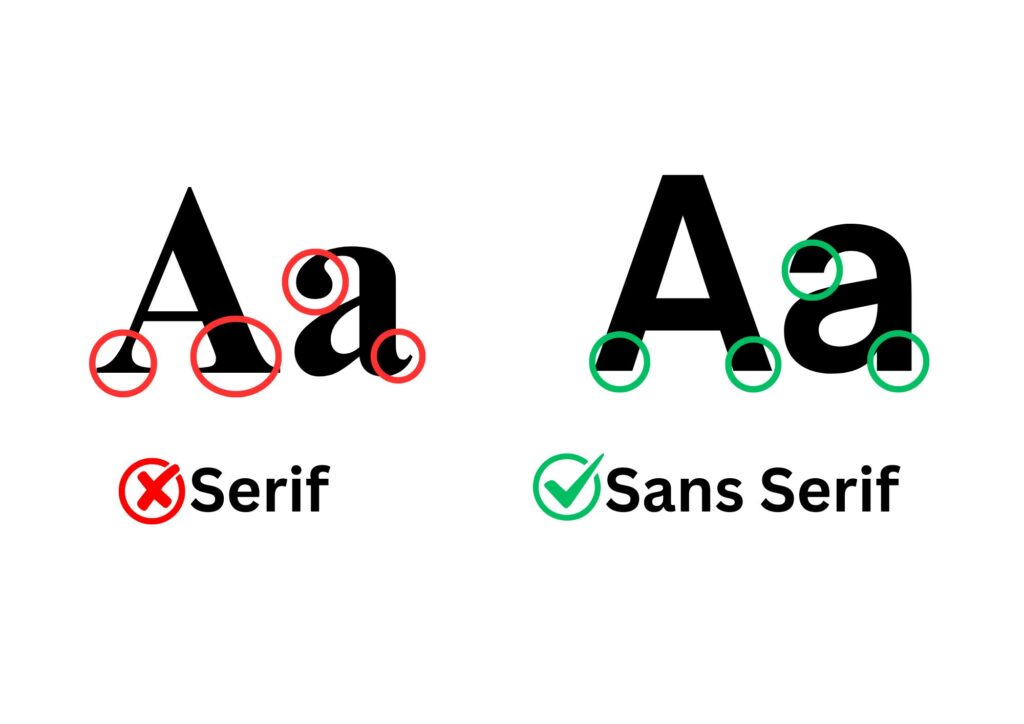
- Use at least 12pt font size for main body text
- Use sans-serif fonts (e.g. Arial, Calibri)
- Avoid dense blocks of text by using paragraphs and bullet points.
- An added benefit of using large text size is that it limits overly dense information slides, which can be hard to process in a lecture environment.
Check the use of colour
Why? Slides that have a strong contrast between text and background help everyone view slides in different light conditions (e.g. bright rooms and with glare) and are more accessible for learners with low vision or colour blindness.
Read the Accessible Colour and Contrast for full details.
- Keep colour contrast high between the text and background.
- Manually check any items if you’re using any partly transparent text/lines on a background with WebAIM: Contrast Checker.
- Do not rely on colour alone to convey meaning
Write alt text
Why? Alt text should briefly describe the image, its intent, and what is important about the image for someone who can’t perceive it.
- Add alt text to images, grouped images, SmartArt, shapes, charts, and embedded videos.
- Follow the Writing alt-text guidance for more details
Provide alternative formats for audio visual content
Why? Video and audio content may not always be accessible, and captions or transcripts provide a way for everyone to understand the material.
For any audio visual content linked in the PDF, make sure there is an alternative format.
- Provide captions for all video content.
- Provide transcripts for audio content
- Consider audio description where visual detail is important
Make all links descriptive
Why? Creating descriptive and meaningful links helps all users understand where a link goes before they click it. This is especially important for screen reader users, as well as dyslexic and neurodivergent students.
- Write descriptive link text that clearly explains the destination.
- See Creating meaningful links.
Set headers for tables
Why? This lets assistive technologies read the content letting users to understand the table.
- Set headers for tables to identify the content in each row and column.
- See creating accessible tables.
Complete a final accessibility check
Use the built-in Accessibility Checker and make any additional checks before sharing your slides. Where possible, test with a screen reader
Export a tagged PDF
Why? Tags are essential for assistive technology such as screen readers and braille displays.
- Use ‘Save As’ PDF and enable tags for accessibility in the settings.
- Never use the ‘Print to PDF’ option.
Share the content via an alternate format
Why? Even accessible PDFs can present accessibility and usability challenges.
- Provide an alternative format such as a Word Document, PowerPoint file, Moodle Page or Moodle Book alongside your accessible PDF.