
Published on: 24/07/2024 · Last updated on: 25/06/2026
Introduction
Microsoft 365 tools let you export your document as a tagged PDF. Tagged PDFs allow assistive technology users to access the structure and content in a document.
1. Follow best accessibility practices in Microsoft 365 tools
It is essential to follow the SCULPT principles and use Accessible PDF checklist to prepare an accessible document.
2. Save file as PDF
Use the File > Save as prompt
- Go to ‘File’ in the ribbon
- ‘Save As’ and select ‘PDF’ from drop-down menu
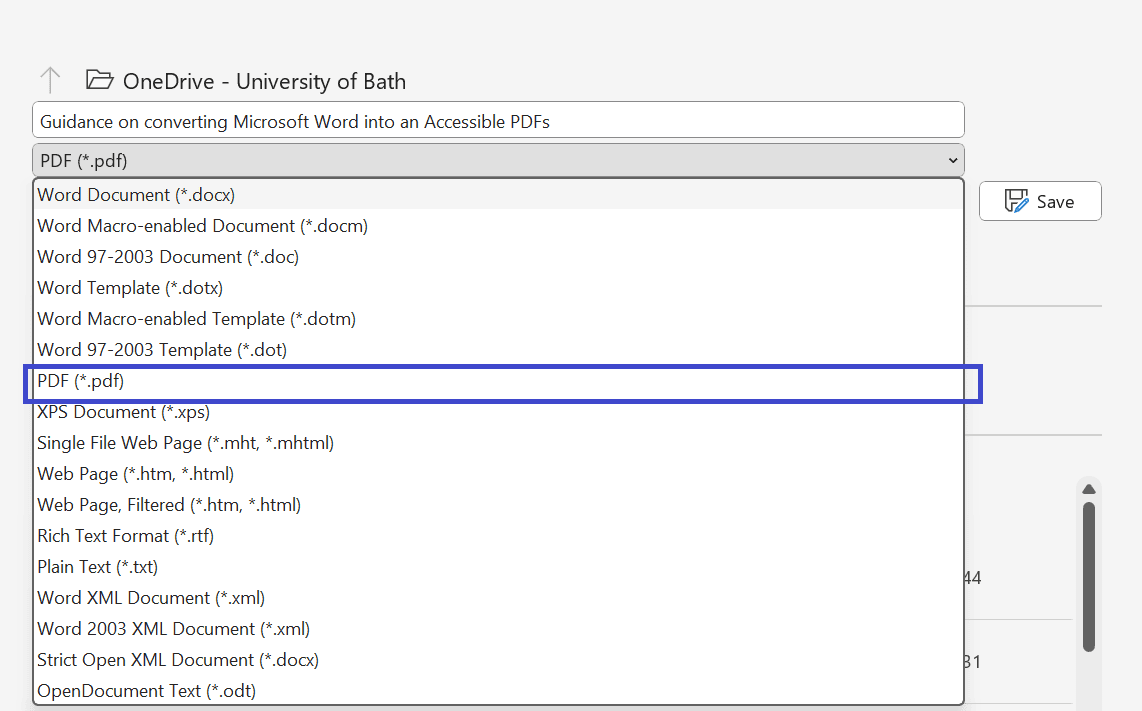
Check PDF settings
- Select ‘More Options…’ which open a pop-up tab
- Make sure ‘Create bookmarks using: Headings’ is selected
- Make sure ‘Document Structure tags for accessibility’ is selected
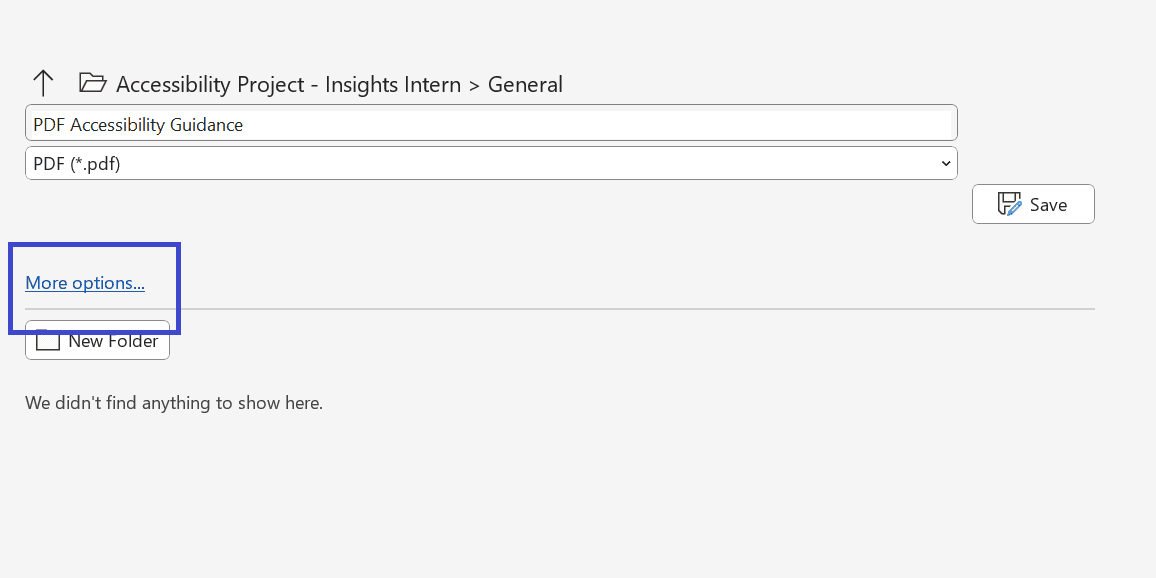
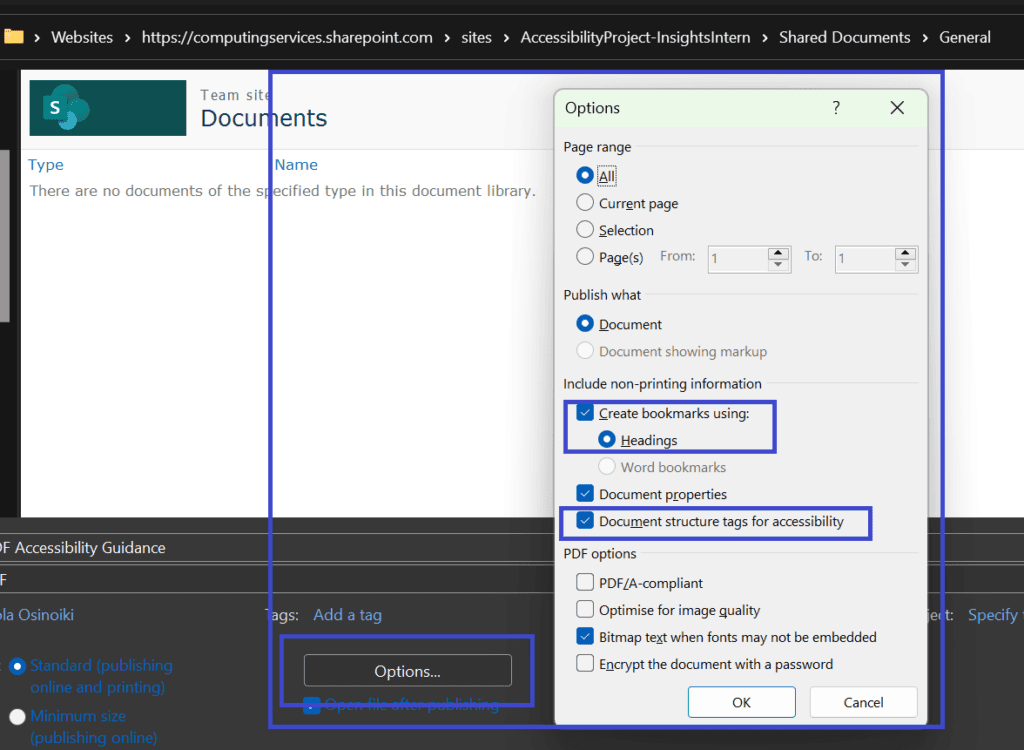
Video of how to save Word Document as a tagged PDF
If this video does not match the Windows version of your computer access the Accessible PDF Creating Guidance by Microsoft Support.
Saving a tagged PDF from Word (no audio) | Panopto
Using Sensus Access for conversion
The University of Bath has a SensusAccess tool for creating alternative formats. This tool can be used to convert between different accessible file formats: for example from Word to either PDF, audio podcast or Braille.