Published on: 24/11/2025 · Last updated on: 01/07/2026
External guidance
Visit the FeedbackFruits website for their full guidance on:
Self Assessment of Skills : Teacher Guide | Student Guide
Self Assessment of Work : Teacher Guide | Student Guide

Self Assessment refers to two similar FeedbackFruits activities, Self Assessment of Skills and Self Assessment of Work.
Create the activity
The instructions below assume you have already created the Self Assessment (of either Skills of Work) activity in Moodle. If not, please do that first with instructions from the ‘how to create a FeedbackFruits activity’ article.
The instructions below highlight settings where you may need more information to help you set up your activity, or where we offer a recommended approach.
Section 1 – Instructions
Adding instructions
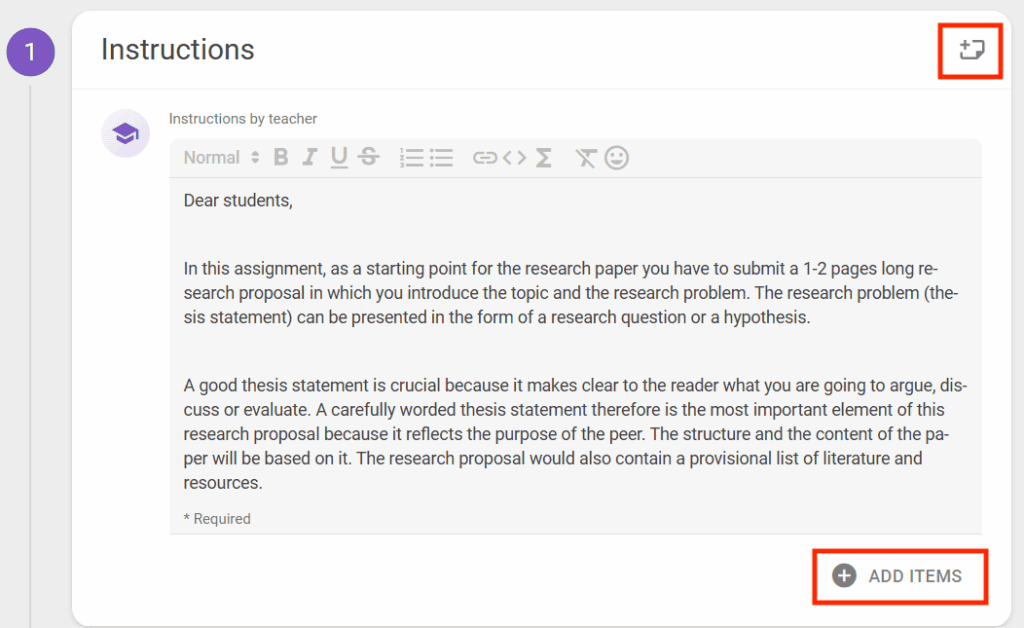
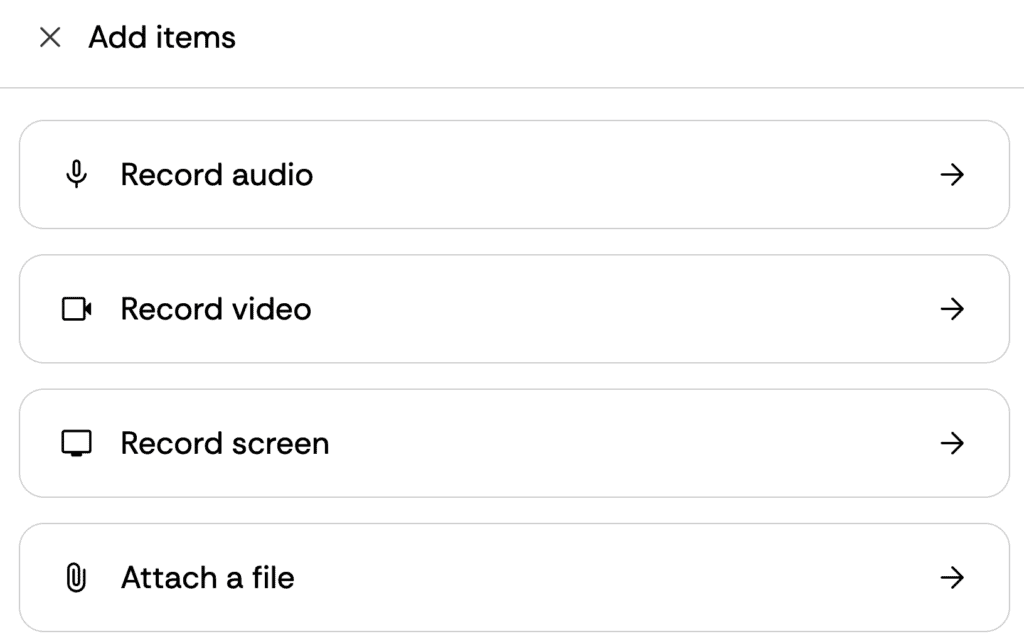
Instructions for students can be typed into the available text box, but you also have the ability to upload documents (such as an assignment brief, marking criteria, assessment rubric or an exemplar). You can also add audio, video or a screen cast.
- Click the ‘Add items’ button.
- For video and audio, you will see a browser pop-up for you to confirm you want to give access to your mic and/or camera.
- In the top right corner of the panel, you can add notes which will only be visible to staff (i.e. Teacher or Non-editing Teacher roles).
Student collaboration
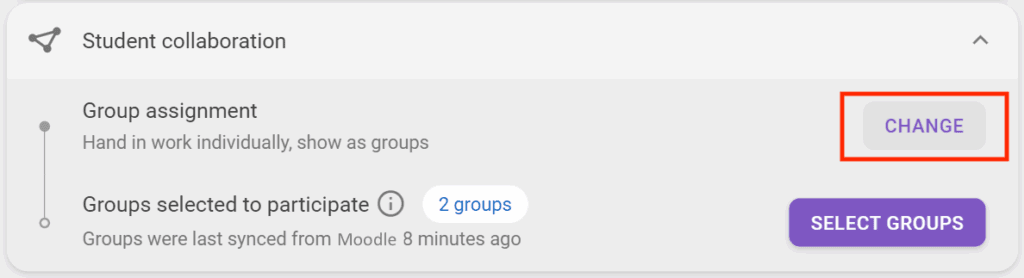
Collaboration options need to be selected before students participate in the assignment – once a student starts the activity, the configurations can’t be updated.
- Click the Change button, select the appropriate options and follow any Next links to complete the process.
Individual submisisons
If you want students to submit an individual piece of work, they can do this within the appropriate SAMIS cohort grouping, or within any other grouping you have created. With large cohorts it can be useful to use groups/grouping to make it easier to filter the list later (e.g. if you have multiple assessors, they can find their students more easily).
Group submissions
If you want students to submit a group piece of work, they can do this by being appropriately mapped to a suitably named grouping (which includes the relevant groups).
Assessors can grade the submission as a group (i.e. the same group grade given to each member of the group) or as individuals (a unique grade for each member of the group).
Section 2 – Submissions (Self-assessment of work only)
Section 3 – Given reviews
Section 4 – Received reviews
Grading
Grading is optional
The grading panel is optional. If you don’t want to include grading, and instead just provide an opportunity for students to reflect, you can remove this panel by clicking the cross in its right hand corner. However, it can be beneficial, even for formative activities, to including a small grade for completion to encourage participation.
If using the Grading panel, you should aim to configure the grading options before students start the activity. Also, this configuration should be checked following any changes to the grading criteria to ensure you have taken those changes into account in the grading.
For Self Assessment of Work, there is an option for requiring a submitted file.
- Click the Configure button to choose which elements of the activity you want graded, and to decide the weighting of those activities.
- Ensure the total is set at 100%.

Grading options
It’s recommended that you don’t change these settings.
Add (optional) learning steps
Running the activity
Editing after the activity starts
If you need to edit the activity after students have started it, you can click the Edit button in the top right corner. Some settings will not be able to be changed at this point, and they will be disabled (greyed out) or a message will explain the reason.
Releasing feedback and grades
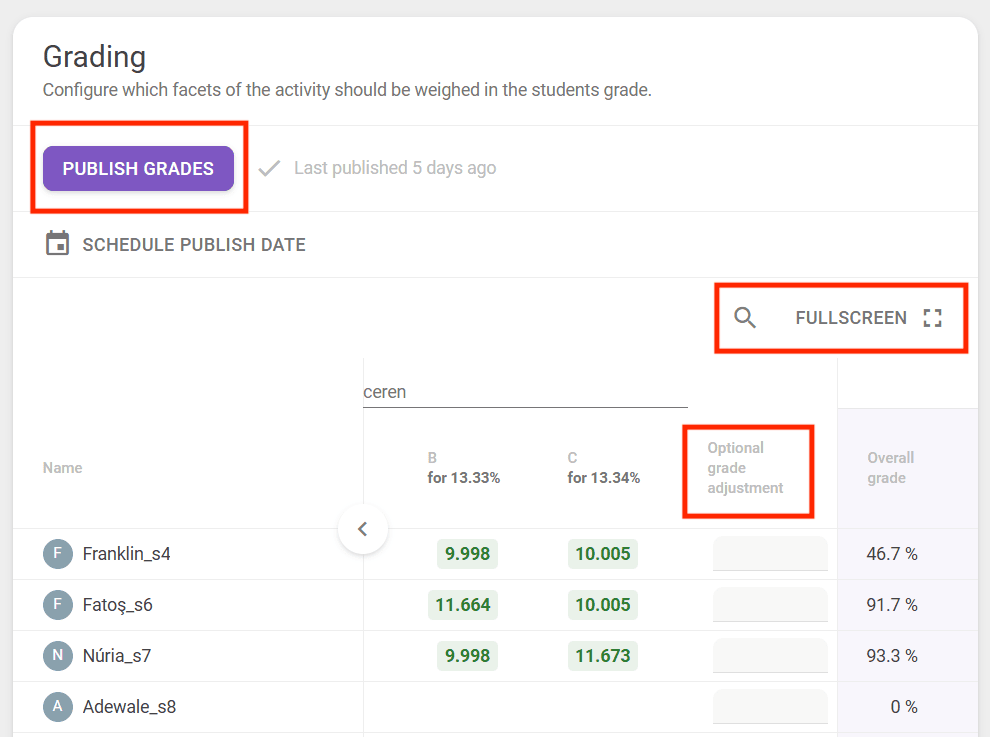
To manually release grades, click the Publish grades button. This will display the grades to students within the FeedbackFruits activity, and if you have chosen the setting to pass grades back to Moodle they will also appear in the Moodle gradebook.
If required, you can also make manual grade adjustments byscrolling to that column (or clicking the fullscreen button).
After the activity is completed
Storing submissions and data
As an external service, FeedbackFruits activities are not captured in the Moodle summer snapshot (which becomes the Moodle ‘Archive’). This means students, in subsequent years of their course, will not be able to go back and look at these activities. Therefore, It is recommended that staff export submissions and analytics data from any FeedbackFruits activities, and store them securely for future reference as required by university regulations. Additionally, students should be encouraged to download their feedback so they can learn from it going into future assessments.
Select the activity, and in Section 1 click the Export Analytics button. This will download a spreadsheet with current data.
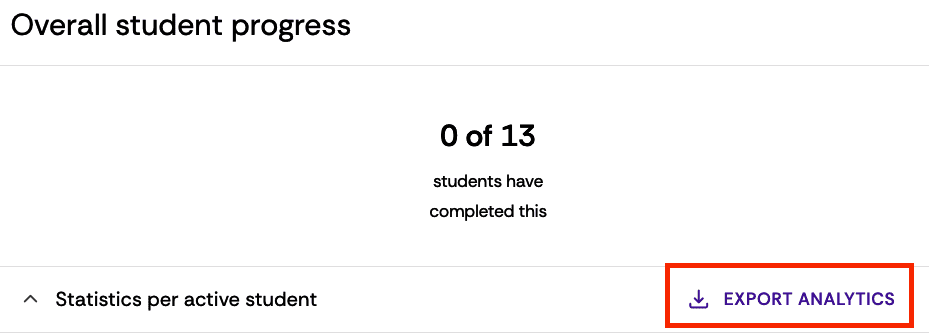
To download all submissions, go to Section 2 and click the download icon.
Student feedback
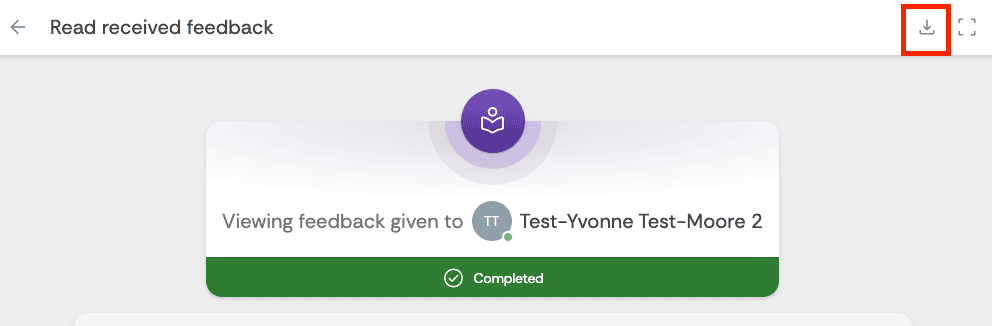
Advise students if they want to keep a copy of their self assessment, they should access the activity and click ‘View feedback’, in the “Read received feedback” Section, and then click the download button to export their feedback to a PDF file.