
Published on: 06/10/2025 · Last updated on: 29/10/2026
External guidance
Visit the FeedbackFruits website for their full guidance: Teacher Guide | Student Guide

Create the activity
The instructions below assume you have already created the Automated Feedback activity in Moodle. If not, please do that first with instructions from the ‘how to create a FeedbackFruits activity’ article.
Below we highlight settings where you may need more information to help you set up your activity, or where we offer a recommended approach.
Section 1 – Instructions
Adding instructions
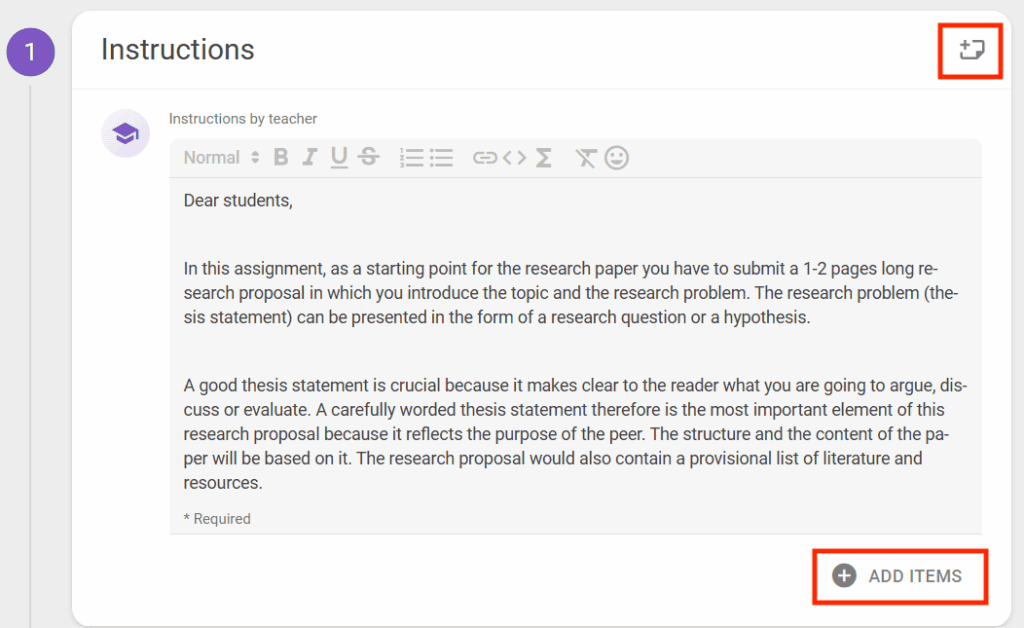
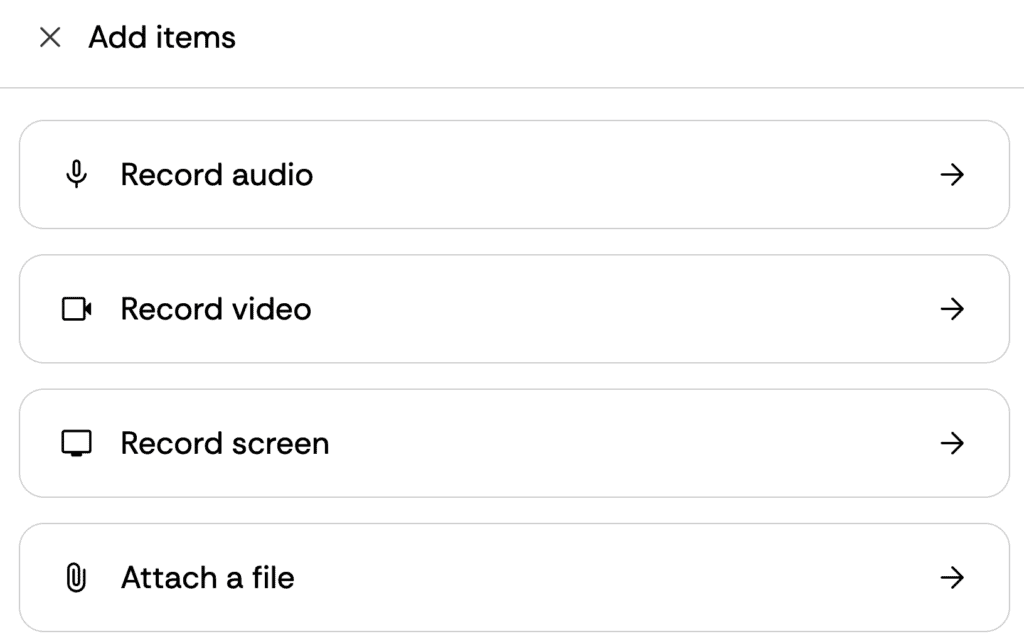
Instructions for students can be typed into the available text box, but you also have the ability to upload documents (such as an assignment brief, marking criteria, assessment rubric or an exemplar). You can also add audio, video or a screen cast.
- Click the ‘Add items’ button.
- For video and audio, you will see a browser pop-up for you to confirm you want to give access to your mic and/or camera.
- In the top right corner of the panel, you can add notes which will only be visible to staff (i.e. Teacher or Non-editing Teacher roles).
Student collaboration
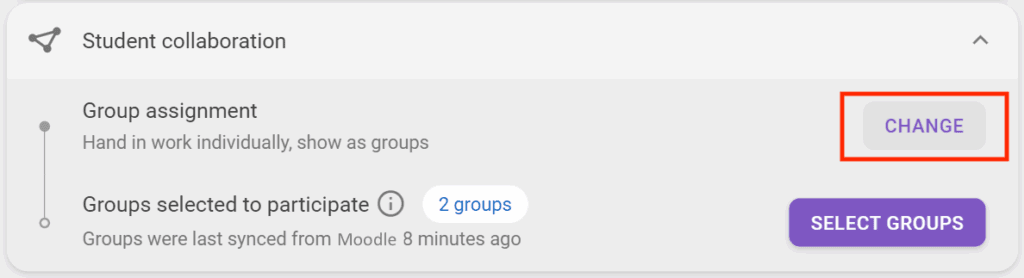
Collaboration options need to be selected before students participate in the assignment – once a student starts the activity, the configurations can’t be updated.
- Click the Change button, select the appropriate options and follow any Next links to complete the process.
Individual submisisons
If you want students to submit an individual piece of work, they can do this. All students enrolled in your Moodle space will be able to attempt the activity.
Group submissions
If you want students to submit a group piece of work, they can do this by being appropriately mapped to a suitably named grouping (which includes the relevant groups).
Only one person in the group needs to submit, but all group members will be able to see the feedback.
Section 2 – Submissions
Scheduling deadlines
It is recommended that you set a deadline for submission. If you choose not to set a deadline, students will be able to see feedback almost immediately (usually within 2 to 3 minutes).
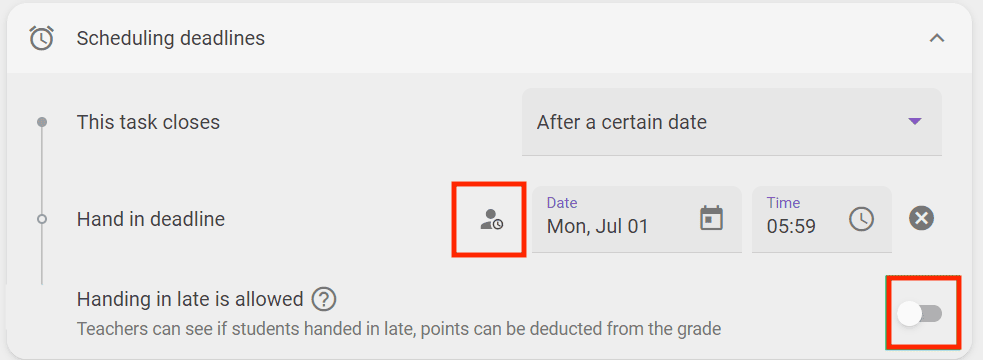
- By setting deadlines you can control when the students can submit and therefore when feedback is presented to them.
- If you want students to be allowed to submit late, then you need to enable that setting.
- The resulting analytics will highlight where a submission has been added late.
Giving extra time or an extension
Click the icon next to the submission dates in order to add extra time for individual students. You can also do this while the activity is running, without returning to the Edit screen.
File requirements
The automated feedback activity will only accept document files (e.g. PDF, DOC, DOCX, ODT, PAGES, PPT, PPTX, PPSX, ODP, KEY, ODS, TXT, RTF etc.).
Section 3 – Automated feedback
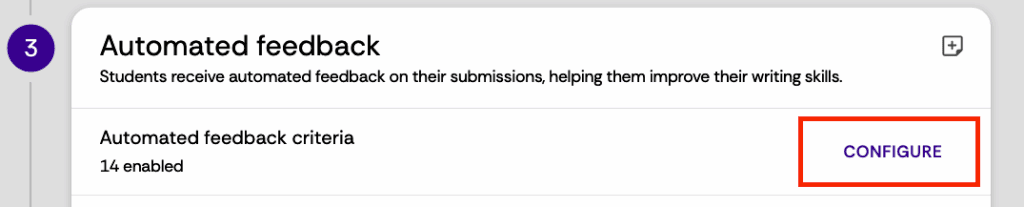
Configure automated criteria for assessment
In this section you can set up the criteria you want the AI system to check for reporting back to students. Be aware that AI can make errors, and students should be instructed to read the feedback critically and mark any reponses they disagree with as errors.
You can read about the available criteria to generate automated feedback at FeedbackFruits, and below are some recommendations.
| Options | Please consider: |
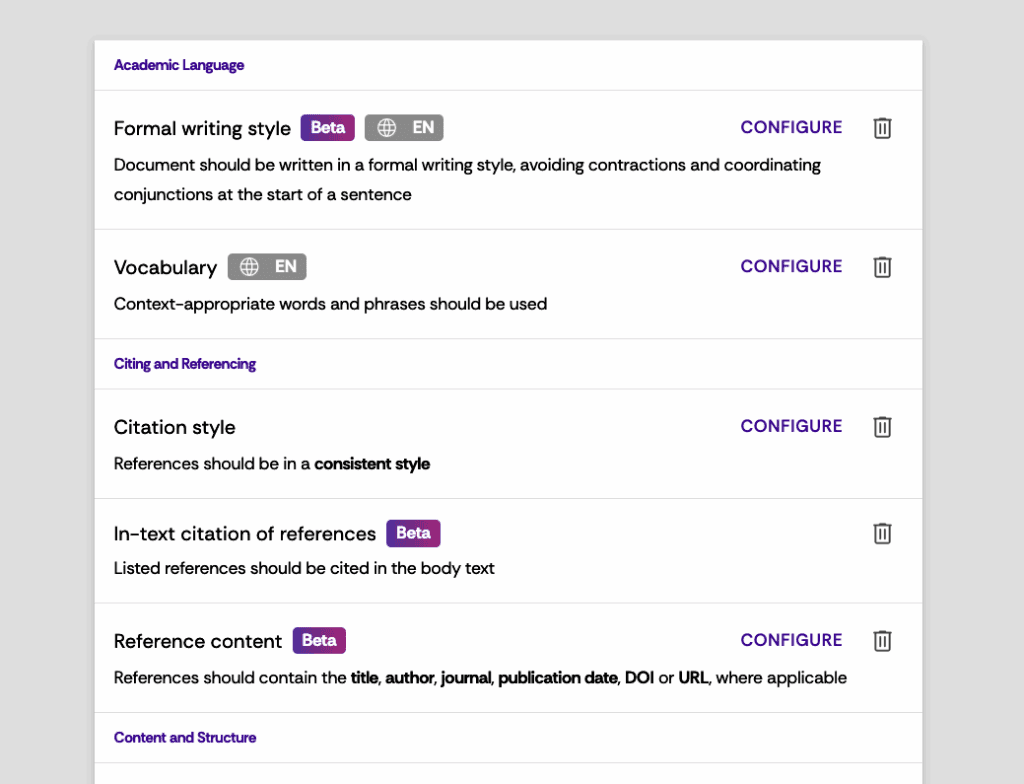
| General: Abbreviation introduction | Abbreviations that are not commonly known should be introduced in brackets, e.g. NLP (Natural Language Processing). |
| General: Required sections | Each section that is required within an assignment can be entered here, such as ‘Introduction’, or ‘Literature Review’ and ‘References’ etc. |
| General: Formal writing style | Formal writing conventions should be followed, avoiding “contractions (it’s, they’re)”, and starting sentences with a coordinating conjunction. |
| General: Word count | Enter a minimum or maximum amount of words that the work must contain. |
| Academic Language: Vocabulary | Feedback is given on the use of vocabulary based on context, collocations, and redundant and easily confused words. |
| Format: Page numbers | Ensures that all the pages in the document are numbered. |
| Citing and Referencing: Citation style | Consider this option carefully but if used choose the ‘Consistent’ option. You can specifically use one of the styles provided (AMA, ACS, Harvard (Deakin), IEEE, MLA, APA(7th ed), Harvard, Vancouver), however please note that Harvard and Harvard (Deakin) are not the same as Harvard Bath and should not be used in its place. The other styles have not been tested, amd we cannot comment on their success. |
| Citing and Referencing: Reference content | Feedback is given when references don’t contain specified elements necessary (e.g. a publication date). |
| Citing and Referencing: In-text citation of references | Feedback is given on whether all listed references are properly cited in the body text. |
| Tables and Figures: Figure captions | Ensures that all figures contain an accompanying caption that describes the figure. |
| Tables and Figures: In-text citation of figures | Ensures that all listed figures are also cited in the body text. |
| Tables and Figures: Table captions | Ensures that all tables contain an accompanying caption that describes the table. |
| Tables and Figures: In-text citation of tables | Ensures that all listed tables are also cited in the body text |
Click the Configure button to see the options available.
You can then delete existing options (click the bin icon), configure options (click the Configure buttons) or click Add another button to select any additional options.

Running the activity
Editing after the activity starts
If you need to edit the activity after students have started it, you can click the Edit button in the top right corner. Some settings will not be able to be changed at this point, and they will be disabled (greyed out) or a message will explain the reason.
Overall student progress
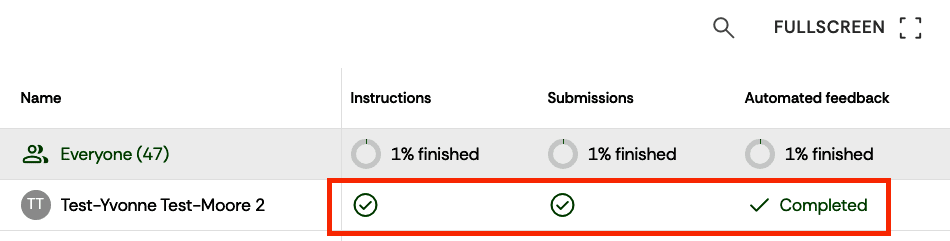
When students start to submit work the analytics panel at the top of the activity, called ‘Overall student progress‘, will start to populate. When the AI has finished you will see ‘Completed‘ in the Automated Feedback column.
Submissions panel
In the Submissions area (section 2) you will be able to track which students have submitted work. You can also select files to read them, and see the AI feedback provided.

Automated Feedback
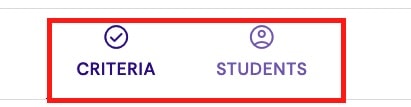
In the Automated Feedback panel you will see an overview of the results of the feedback provided by the AI. You can review via:
- Criteria – this provides a ‘cohort’ overview of how successfult student work has met the criteria.
- Students – this allows you to see results per student, including whether students have identified any errors in the results. You can also select the file uploaded by individual students to review their feedback.
Full screen & search
When you are working with large cohorts you have some features to help.
- Click the full screen icon to expand the table showing the live data, or
- Use the search to filter by groups or individuals.
Tryout
Before students start this activity you can have a ‘tryout’ by uploading a document to see what the AI produces, using the options you have chosen.
- In Section 3 click Upload File and select the document you want reviewed.
- Once the AI has created the feedback you will see a ‘Previous Tryouts‘ button. The feedback doesn’t take long to generate so if you don’t see this button after a minute, refresh the browser.

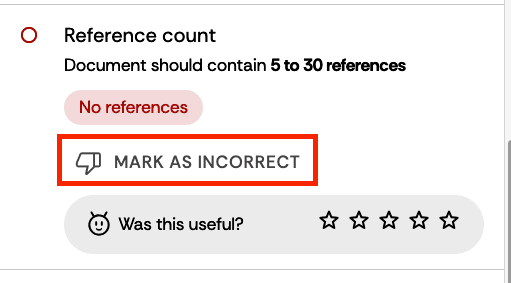
- Click the document you uploaded to review the automated feedback. If there are any errors, please use the option to feedback this back (i.e. Mark as incorrect).
After the activity is completed
Storing submissions and data
As an external service, FeedbackFruits activities are not captured in the Moodle summer snapshot (which becomes the Moodle ‘Archive’). This means students, in subsequent years of their course, will not be able to go back and look at these activities. Therefore, if appropriate for this formative activity, staff can export submissions and analytics data and store them securely for future reference as required.
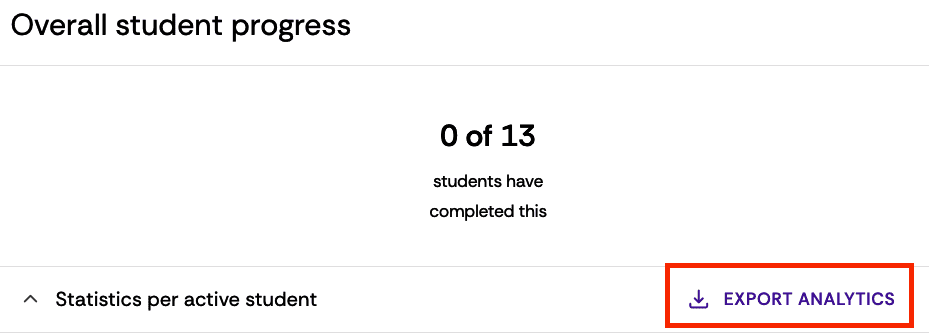
Select the activity, and in Section 1 click the Export Analytics button. This will download a spreadsheet with current data.
To download all submissions, go to Section 2 and click the download icon.
Student feedback
Advise students that the generated AI feedback cannot be downloaded. If the activity is still active within the scheduled deadlines, students can delete their uploaded document and try again. The AI will report on the last submitted document (but wil not keep data related to deleted documents).