Published on: 09/10/2025 · Last updated on: 09/10/2025
External guidance
Visit the FeedbackFruits website for their full guidance: Teacher Guide | Student Guide

Create the activity
The instructions below assume you have already created the Group Formation activity in Moodle. If not, please do that first with instructions from the ‘how to create a FeedbackFruits activity’ article.
The instructions below highlight settings where you may need more information to help you set up your activity, or where we offer a recommended approach.
Section 1 – Instructions
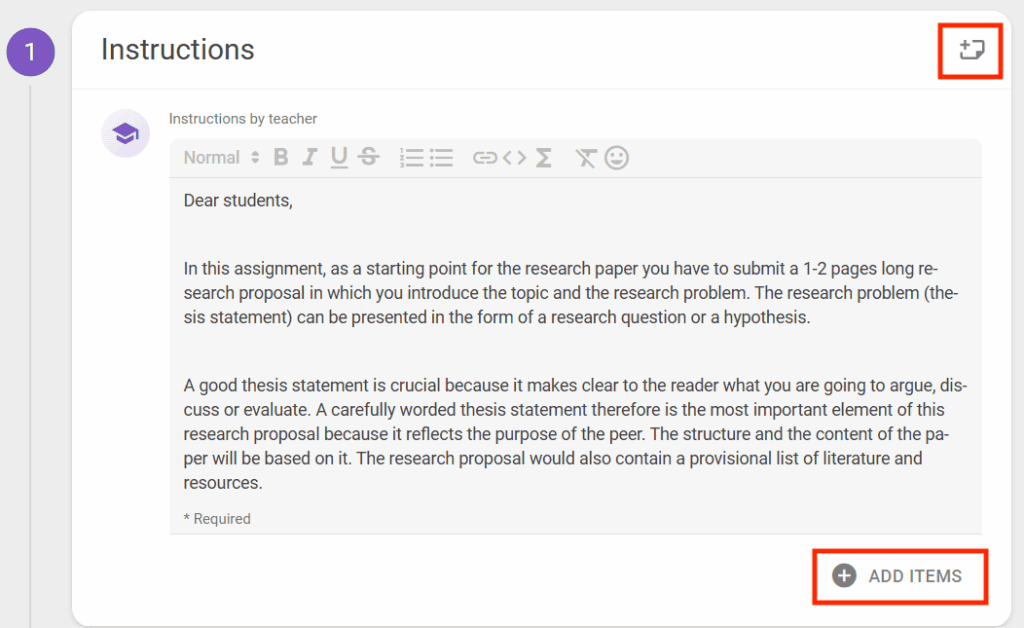
Adding instructions
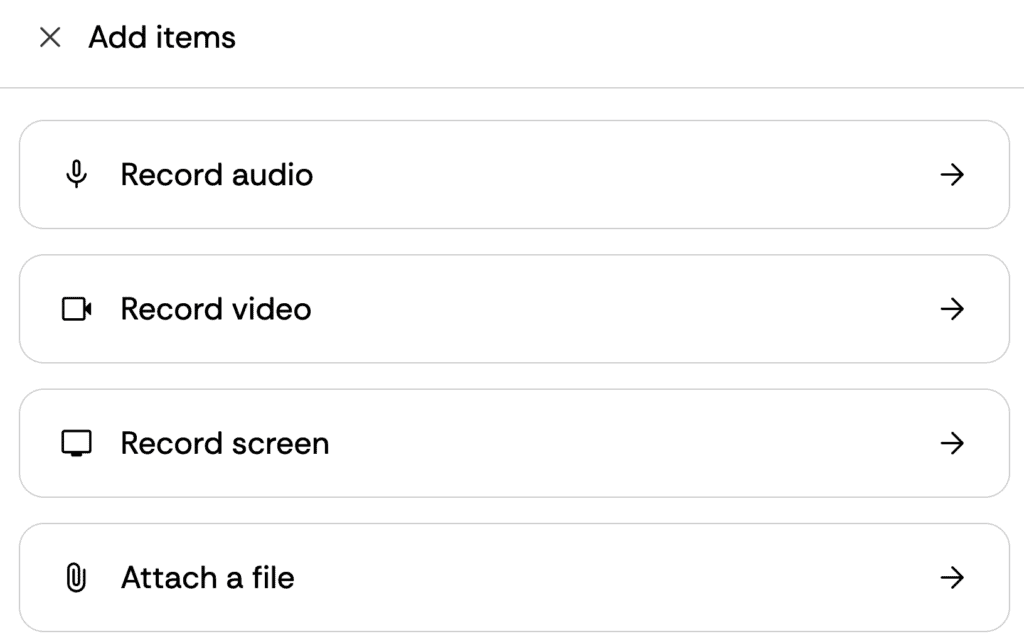
Instructions for students can be typed into the available text box, but you also have the ability to upload documents (such as an assignment brief, marking criteria, assessment rubric or an exemplar). You can also add audio, video or a screen cast.
- Click the ‘Add items’ button.
- For video and audio, you will see a browser pop-up for you to confirm you want to give access to your mic and/or camera.
- In the top right corner of the panel, you can add notes which will only be visible to staff (i.e. Teacher or Non-editing Teacher roles).
Grouping method
Collaboration options need to be selected before students participate in the assignment – once a student starts the activity, the configurations can’t be updated.
- Click the Change button, select the appropriate options and follow any Next links to complete the process.
- Under “Collaboration options” select “Within selected groups” and then click Next.
- Choose to appropriate co-hort under SAMIS Grouping or choose from the appropriate grouping activity. When you are finished click Done.
Section 2 – Group formation
Click on view to edit your quiz.
Click on “+ Add question” to add question to your survey.
As well as creating your survey questions you can also amend the settings for the question.
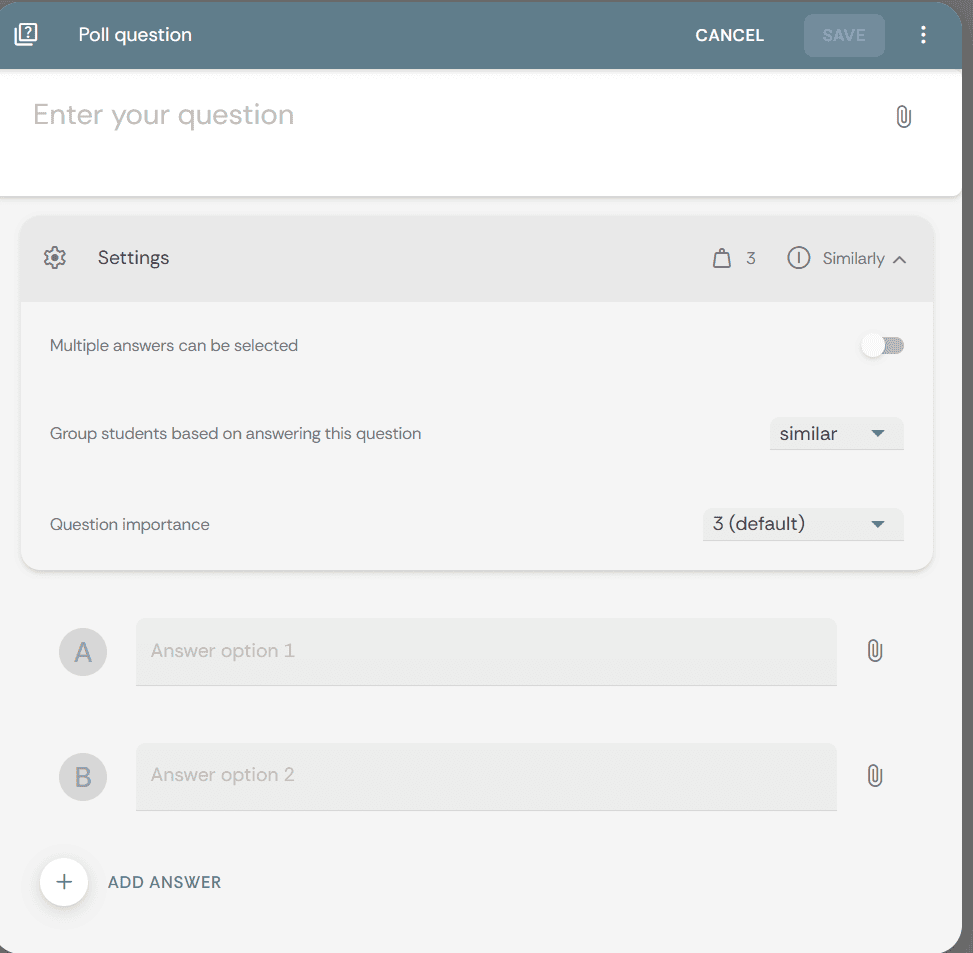
Select the number of students you would like in each group. FeedbackFruits may not be able to create exact group numbers choosen as this also depends on the number of students who complete the activity.
Scheduling deadlines
You can select when students can start this activity and when it ends.

Running the activity
After the activity is completed
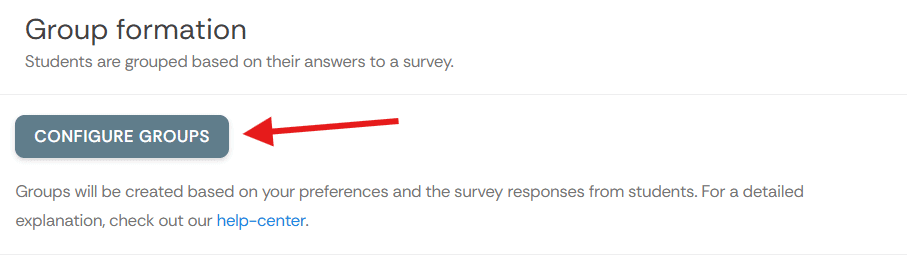
When students have completed the survey you can go to Section 2 and click on the “Configure Groups” button.
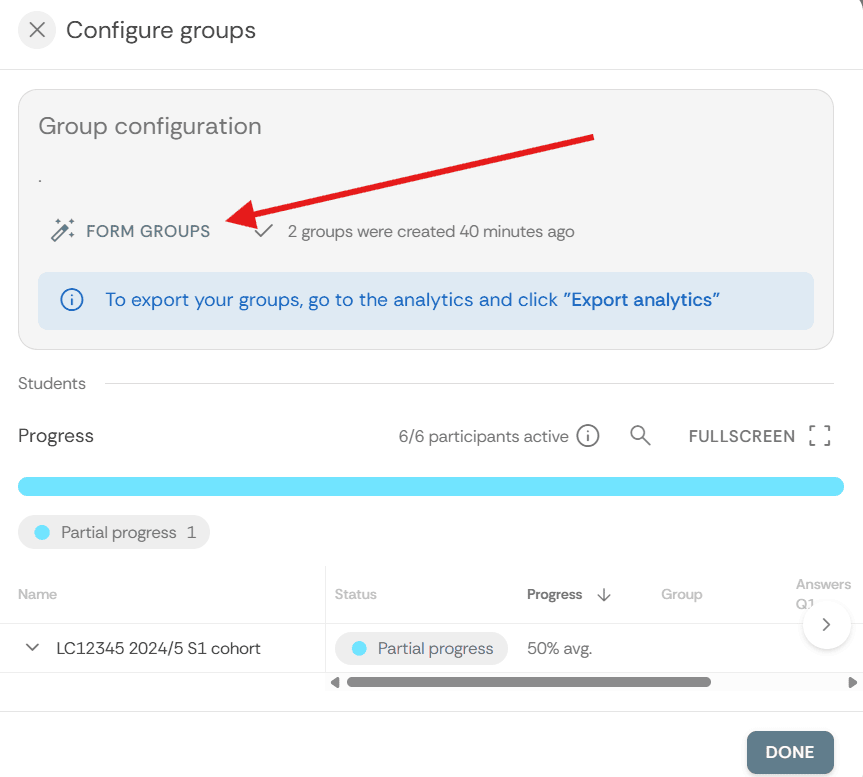
In the pop-up screen select “Form groups”.
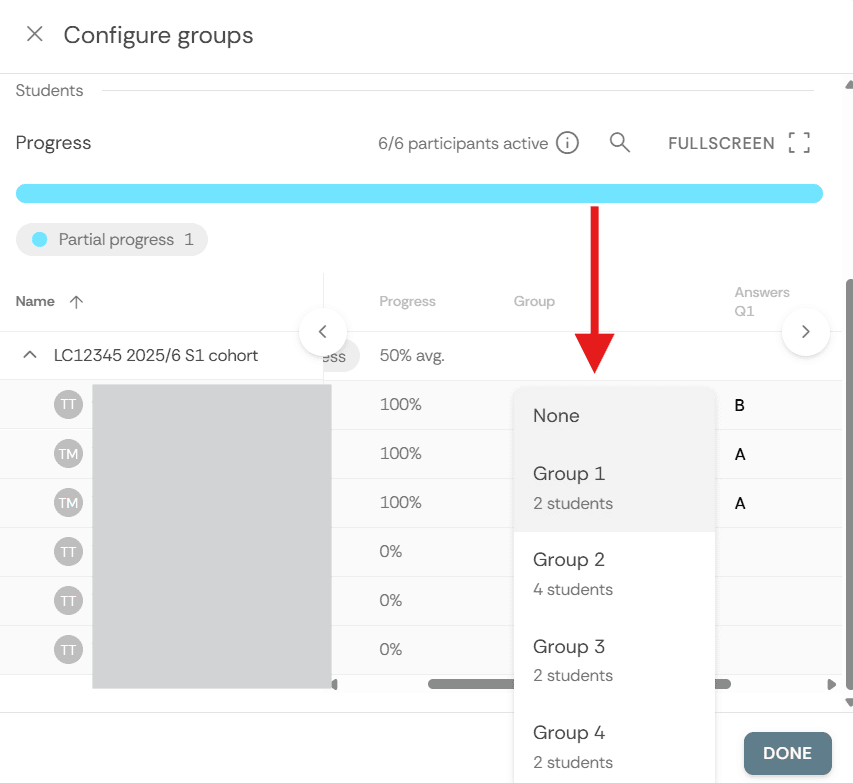
You will have the ability to amend the groups manually if you require to.
When you are happy with the groups created you can publish transport the group data directly into Moodle. Please note you can only publish the groups into Moodle once.
In the Group Figuration pop-up click on “Publish to Moodle”.
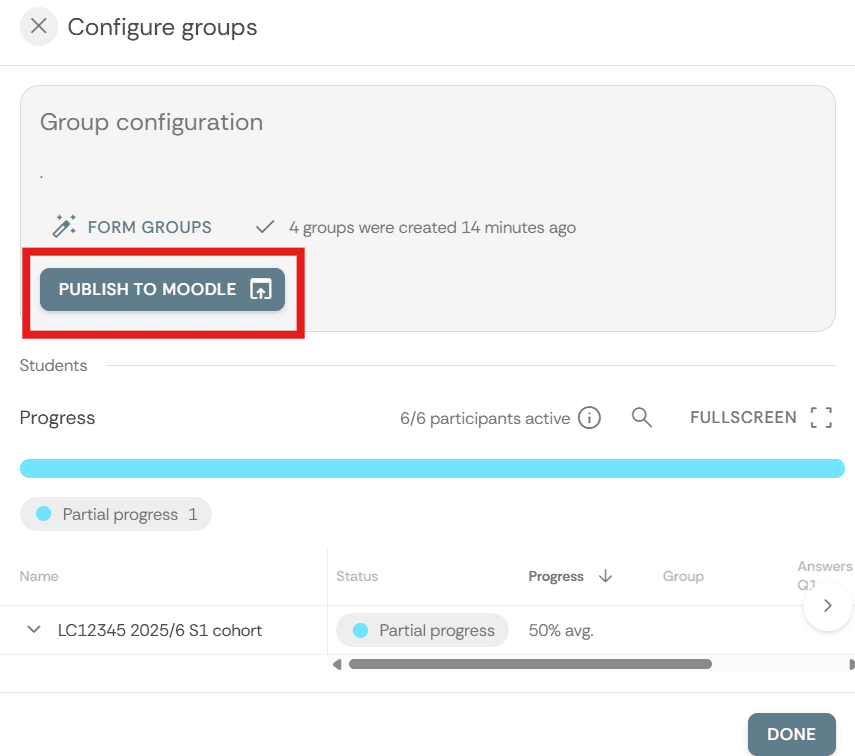
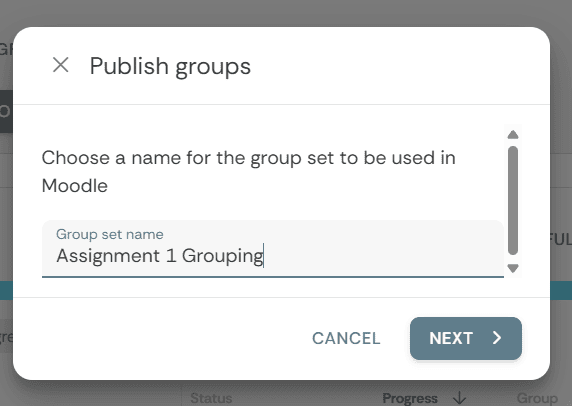
Give the group set an appropriate grouping name. This naming convention will apply to the Grouping and the group names. For example if you use the Group set name “Assignment 1 Grouping” the groups will be named “Assignment 1 Grouping – Group 1”, “Assignment 1 Grouping – Group 2”, “Assignment 1 Grouping – Group 2”, etc. and the grouping will be called “Group Set – Assignment 1 Grouping “.
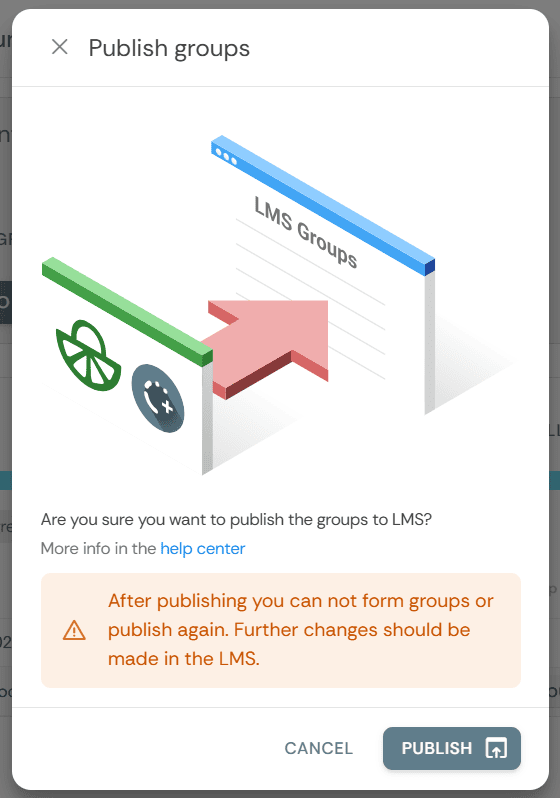
Once you have published your groups you can go back to Moodle to double check the groups have been created.
Storing submissions and data
As an external service, FeedbackFruits activities are not captured in the Moodle summer snapshot (which becomes the Moodle ‘Archive’). This means students, in subsequent years of their course, will not be able to go back and look at these activities. Therefore, it is recommended that staff export submissions and analytics data from any FeedbackFruits activities, and store them securely for future reference as required by university regulations. Additionally, students should be encouraged to download their feedback so they can learn from it going into future assessments.
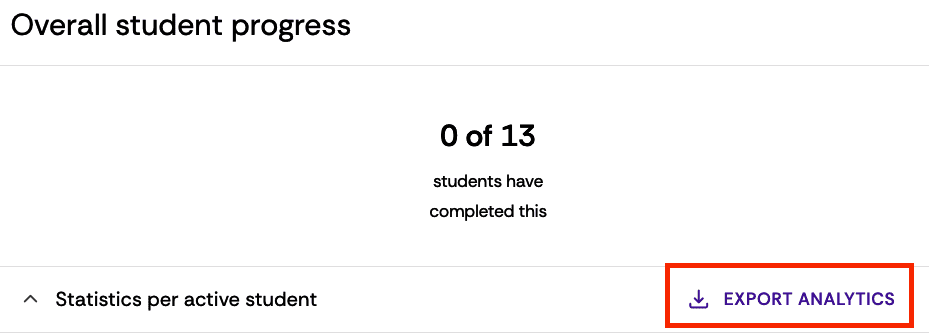
Select the activity, and in Section 1 click the Export Analytics button. This will download a spreadsheet with current data.