
Published on: 26/07/2023 · Last updated on: 04/09/2026
Introduction
The terms of the Teaching Capture Policy mean that the University must ensure data is stored and processed in Panopto in line with the policy. Each year previous academic year recordings are moved for retention purposes and the appropriate staff and students continue to have access to them.
Recordings from previous years
Each September, Moodle-linked folders for the previous academic year will be moved for retention purposes and the recordings stored on the system for two further academic years. During this time, the appropriate cohort of students and staff will continue to have access to the recordings. A new set of blank Moodle-linked folders will be created for the upcoming academic year.
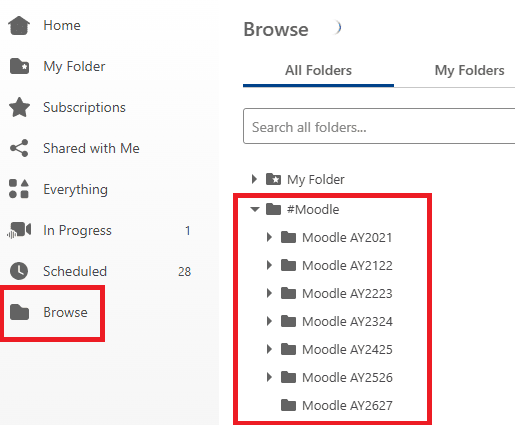
- Recordings from the 2023-24 academic year are stored within the #Moodle AY2324 folder structure in Panopto.
- Recordings from the 2024-25 academic year are stored within the #Moodle AY2425 folder structure in Panopto.
- Recordings from the 2025-26 academic year are stored within the #Moodle AY2526 folder structure in Panopto.
- Recordings from the 2026-27 academic year are stored within the #Moodle AY2627 folder structure in Panopto.
Re-using my recordings from previous years
If you have recordings that are designed to be used year-on-year then you should move them to the appropriate Moodle-linked folder for the current cohort. An example of this would be a short video used to introduce a topic featuring only your own voice, image and some slides.
If the recordings should continue to be accessed by the previous cohort(s) as well as the current cohort, you should move them to the appropriate Moodle-linked folder and share them with the previous cohort(s).
Guidance about how to move recordings for re-use can be found here.
Re-using someone else’s recordings from previous years who is no longer at the University
Unless the material was specifically created for re-use at the time of recording, e.g. the performer(s) have agreed in advance that the material is for re-use, then you cannot re-use the recordings. The re-use of another individual’s previously recorded material in part or in full would require exceptional circumstances. If you believe your requirement to be exceptional or have any queries about copyright and intellectual property rights, please email the University’s Copyright Advisor.
How to share recordings
There are four options to ensure that both current and previous students can access shared recordings:
- Share recordings individually with a current and previous cohort.
- Share the entire Moodle-linked folder and all of its recordings with a previous cohort.
- Copy recordings to make them available to other current cohorts. The recordings will appear in the Panopto block on each Moodle page.
- Share recordings with individuals.
Option 1 – Share individual recordings with a current and previous cohort.
Level 1 Reasonable Adjustment- Move any recordings that need to be shared with a previous cohort to the current Moodle-linked folder for this academic year.
- Navigate to the current Moodle-linked folder for this year.
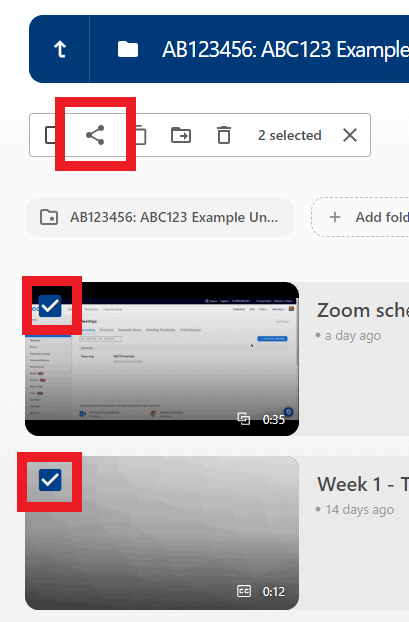
- Tick the checkbox in the top left-hand corner of the thumbnail image for each recording you wish to share with the previous cohort.
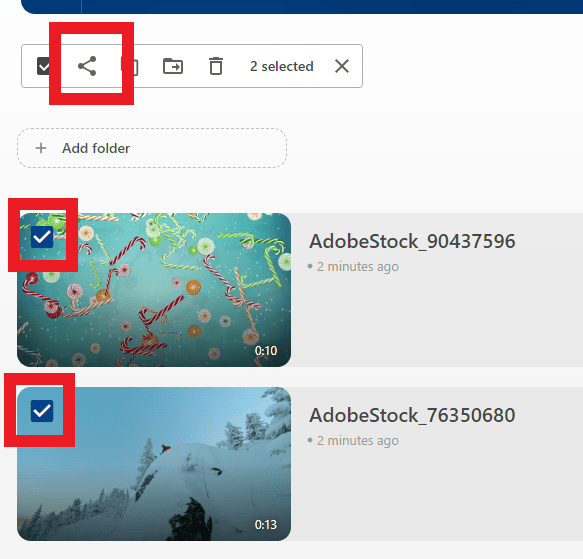
- Click Share.
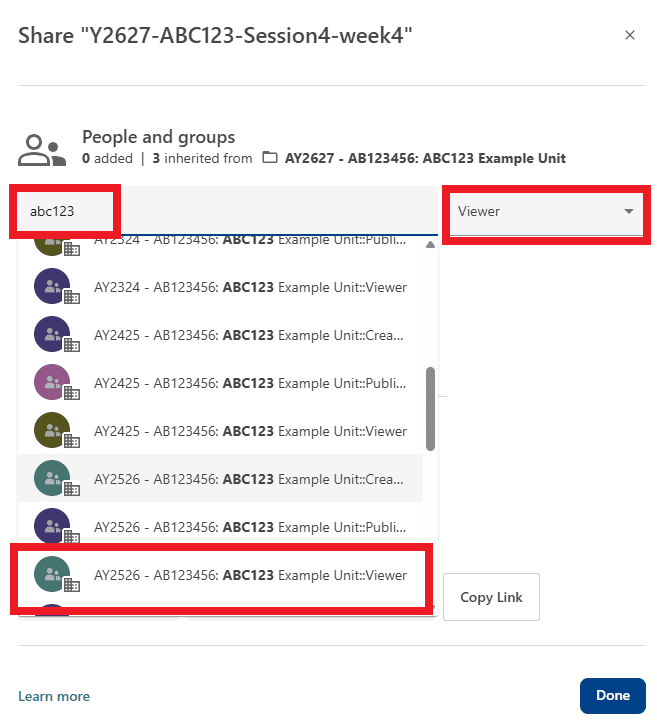
- Within the search box, begin typing the name of the Moodle page. You will notice various groups appear.
- To share with a previous cohort select the group that begins with the appropriate academic year. In this example for the 2025-2026 cohort the prefix is AY2526 and is for viewers (indicated with Viewer… at the end of the name).
Option 2 – Share the entire Moodle-linked folder with a previous cohort.
- Move any recordings that must be shared between cohorts to the current Moodle-linked folder for this academic year.
- Navigate to the current Moodle-linked folder for this year.
- Tick the Share icon in the top left-right corner of the Moodle-linked folder.
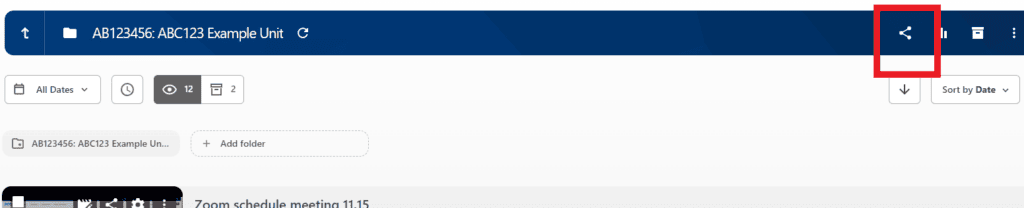
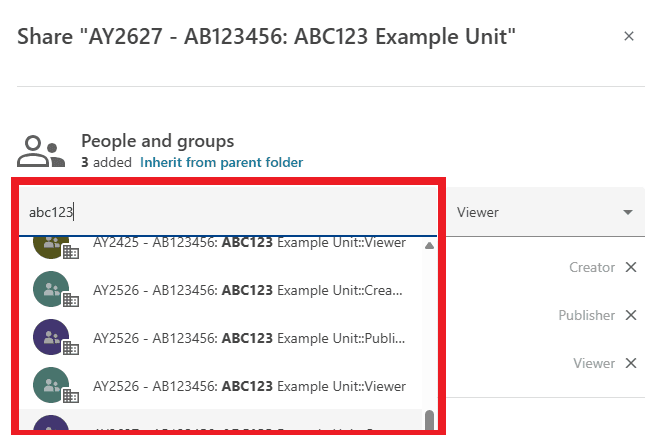
- Within the search box, begin typing the name of the Moodle page. You will notice various groups appear. You may need to hover over the names to distinguish being Viewer (student), Creator (teacher) and Publisher (no users) groups.
- To share with a previous cohort select the group that begins with the appropriate academic year.
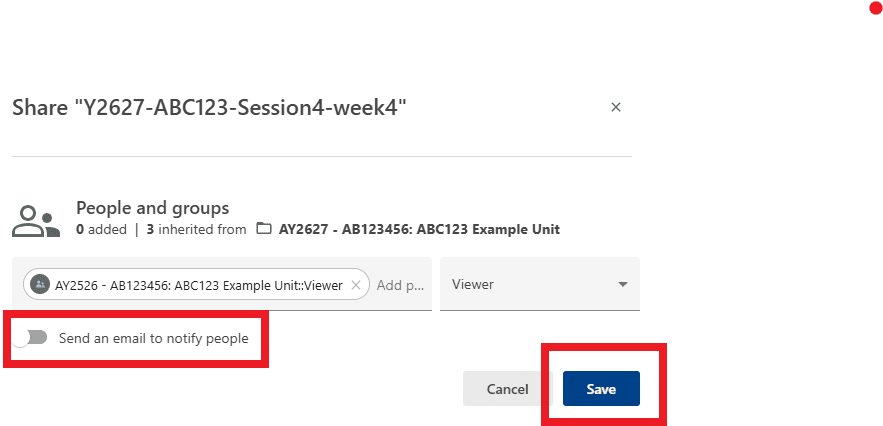
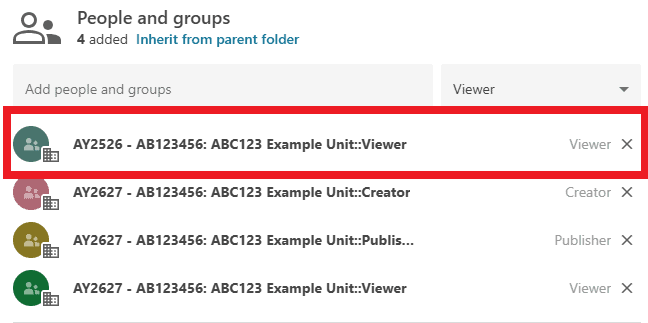
- Untick Send email and then Save.
- The recently added cohort will appear in the group list.
Option 3 – Copy recordings for a current cohort
This option is suitable when teaching across multiple Moodle spaces, and some recordings must be shared with more than one current cohort.
- Ensure the recording is in one Moodle-linked folder.
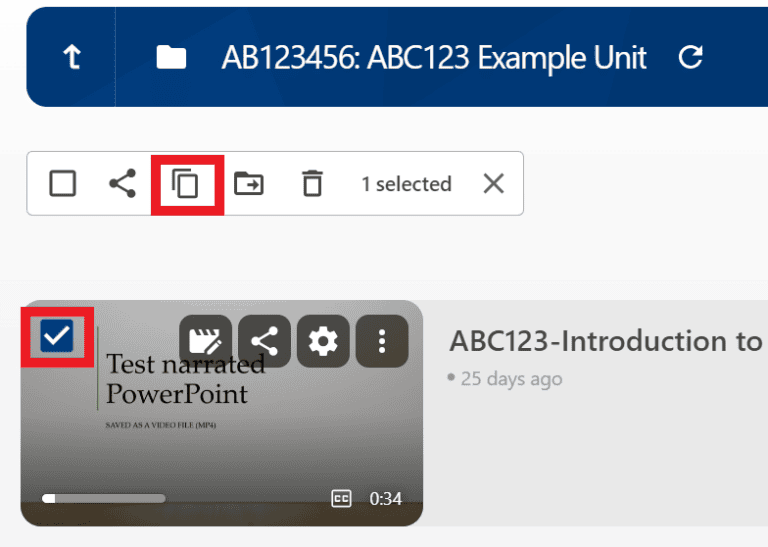
- Click the checkbox and click the Copy icon (or click multiple checkboxes to batch copy multiple recordings).
- Type in the name of the Moodle-linked folder you want to copy the recording to. Ensure that the current academic year is selected. Alternatively, navigate through the #Moodle folder structure using the drop-down menu icons to find the correct folder.
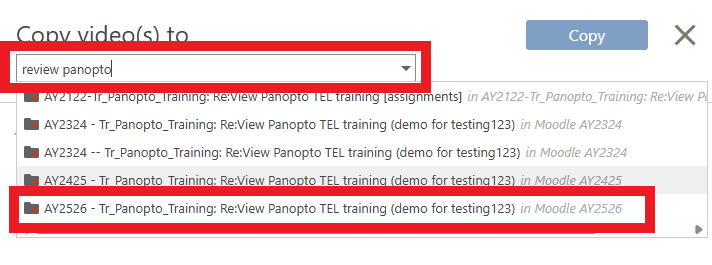
- Follow the steps on the screen to save.
- Navigate to the Moodle-linked folder you copied the recording to. An icon with two interlocking squares indicates that the new copy is a reference copy.
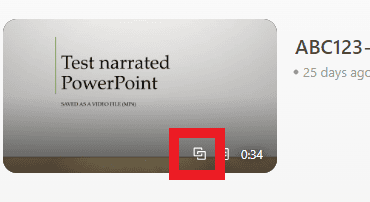
- Reference copies will be displayed in the Panopto block on both Moodle spaces.
Note that:
- To copy a recording to another folder, you must have Creator permissions on both folders.
- Reference copies should not be unlinked from the original. If you need to edit, please edit the original and do not unlink the copies if prompted.
- Each reference copy has a unique URL. If you are linking and embedding reference copies in your Moodle space, ensure you copy the URL/embed code from the recording in the corresponding Moodle-linked folder.
More information about reference copies can be found on Panopto’s guidance pages.
Option 4 – Share recordings with individuals
Level 1 Reasonable AdjustmentRecordings are shared automatically with other staff and students enrolled on a Moodle space if they are saved in the Moodle-linked folder. However, there may be some exceptional circumstances in which you may need to share a recording with another individual user.
Examples of needing to share permissions include:
- You need another user to review a draft recording before moving it to a Moodle-linked folder.
- You need to add a student with a Disability Action Plan to view an otherwise restricted recording.
You must have creator access to the recording/folder to share it with another user.
4.1 Share an individual recording(s) for a user to view (not edit)
Using this method, individual recordings can only be shared for viewing. If another user needs to edit a recording, you must share the folder in which the recording is saved.
- Navigate to the folder in which the recordings are saved.
- Either hover over the thumbnail image of a recording and click the Share icon to share a single recording.
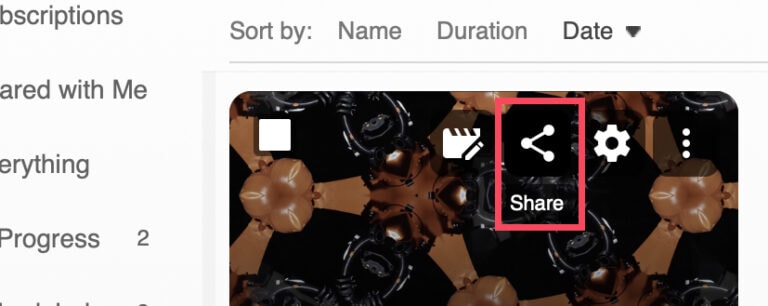
- Or to share multiple recordings, tick the checkbox in the top left-hand corner of each recording you wish to share. Then click the Share icon.
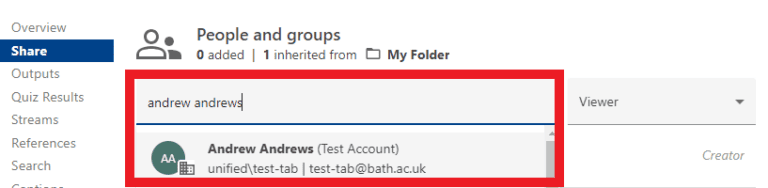
- Either type a message and click Send to notify them via email.
- Or untick Send email and then Save.
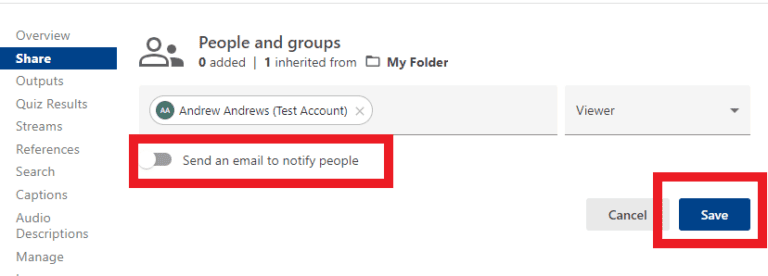
Further guidance can be found on Panopto’s help pages.
4.2 Share a folder for a user to edit recordings in the folder
If you want another user to edit a recording you must share permissions to the entire folder. Note that you cannot add another user to My Folder. Instead, you must create a sub-folder within My Folder and share the sub-folder with them.
- Navigate to the folder that contains the recording(s) you want another user to edit.
- Click the Share icon in the top right-hand corner of the folder.
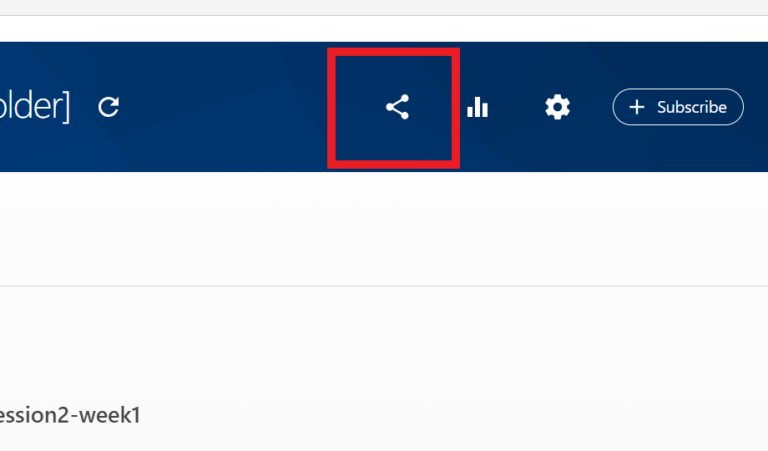
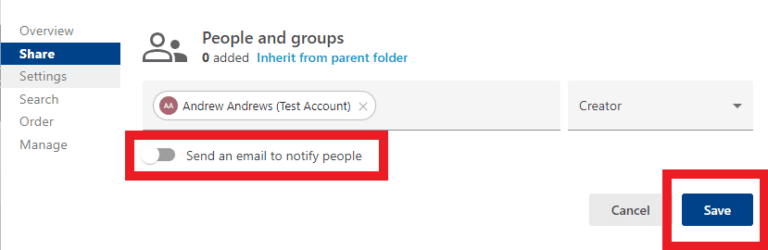
- Change Viewer to Creator to give them editing permissions.
- Within the search box, begin typing the name of the user.
- Click on the name when it appears.
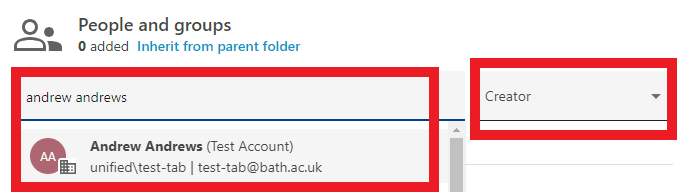
- Either type a message and click Send to notify them via email.
- Or untick Send email and then Save.
Further guidance can be found on Panopto’s help pages.
4.3 Share a folder for a user to view recordings in the folder (not edit)
- Navigate to the folder that contains the recording(s) you want another user to view.
- Click the Share icon in the top right-hand corner of the folder.
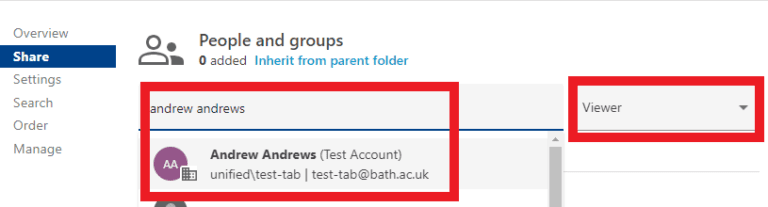
- Ensure Viewer is chosen to give them only viewing permissions (they cannot edit or move recordings).
- Within the search box, begin typing the name of the user.
- Click on the name when it appears.
- Either type a message and click Send to notify them via email.
- Or untick Send email and then Save.