
Published on: 31/07/2023 · Last updated on: 06/07/2026
Preparing to grade an Assignment
Before beginning marking in Moodle it’s important to understand how your assignment has been set up, so that you can ensure that you are not showing marks and feedback to students before you are ready for them to see them.
When you create an Assignment, the ‘Marking Workflow’ setting is enabled. This automatically hides any marks and feedback that you upload for students until you take specific steps to release Marks and Feedback. Releasing marks and feedback is a necessary step to complete Grade Transfer.
Lock submissions to prevent changes
Before you begin marking it’s important to lock submissions. This will stop students from making any changes to their submissions once marking is underway.
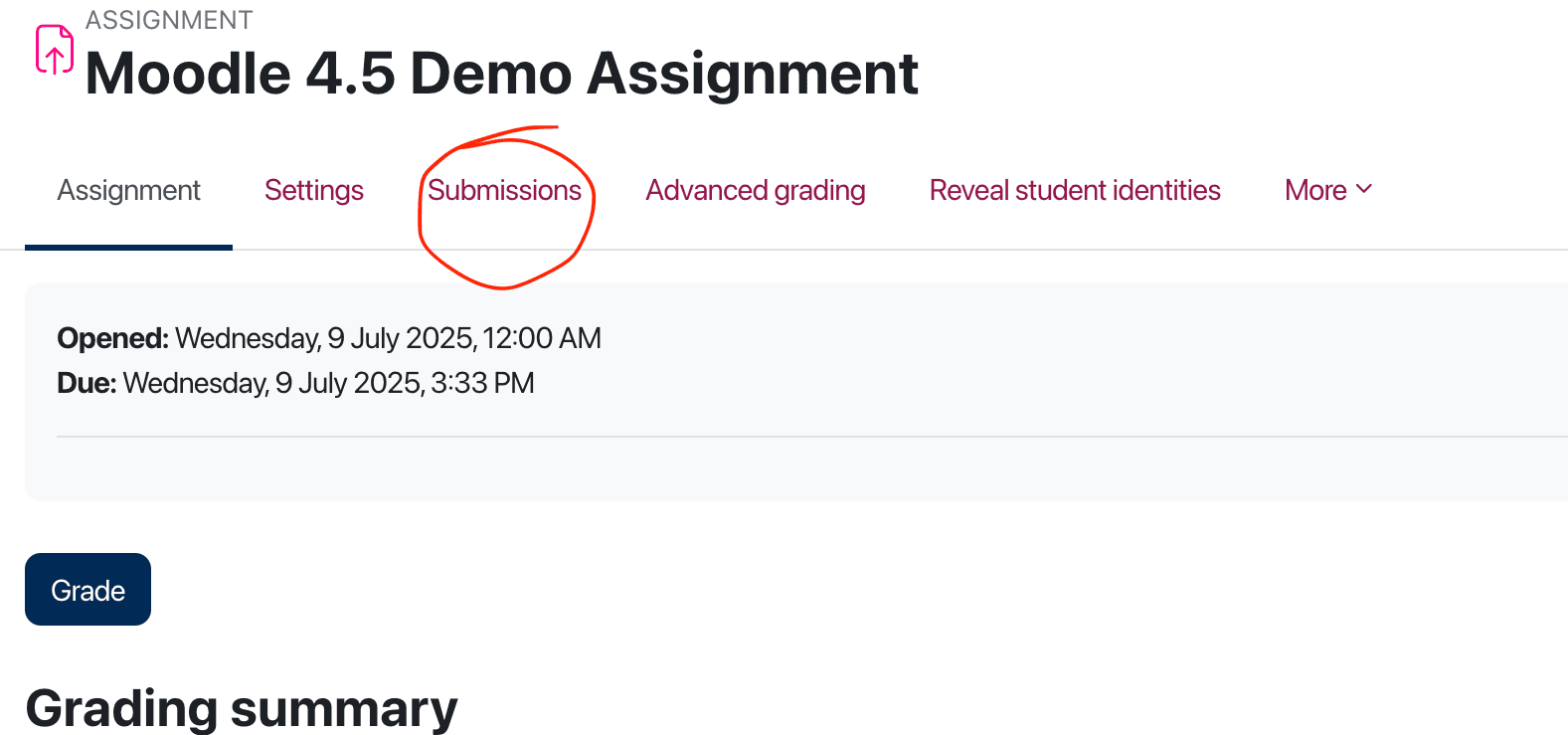
- Click on your Assignment choose Submissions from the top menu
- Tick the box at the top of the ‘select’ column to select all user submissions.
- From the options that appear on the pop up menu on the bottom of the screen choose Lock to lock the submissions.
- Confirm the pop-up prompt that appears.
Moodle grading interface overview
Moodle has a built-in grading interface that allows you to annotate student assignments, add summary comments and award marks. Student submissions are displayed in PDF form and include a link to the Ouriginal similarity report (where activated).
The image below gives an overview of the built-in grading interface:
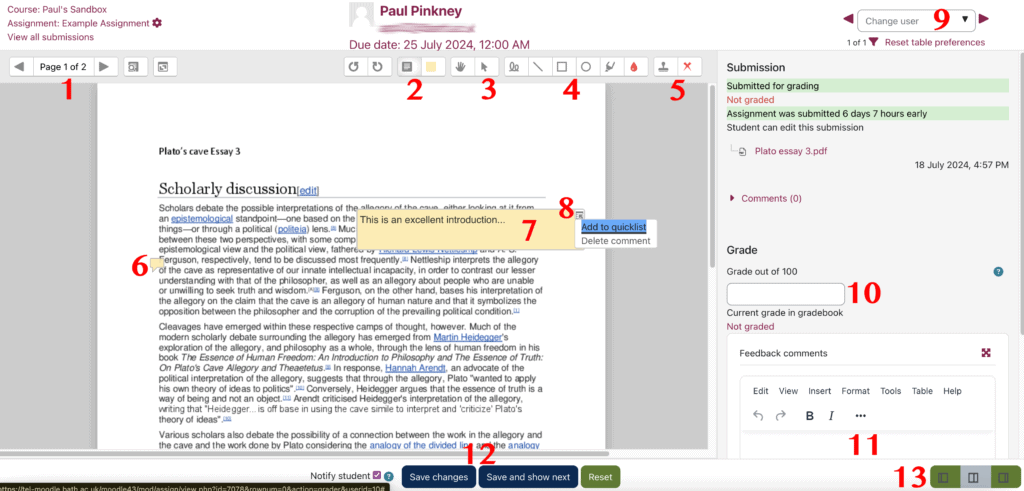
- Use the next and previous arrows to move to the next page of the student’s document or choose a page from the drop-down menu.
- Add an annotation to comment (with option to choose background colour).
- Use the arrow tool to select, move or delete existing annotations.
- Other tools such as the pen (squiggly line) for free form drawing or writing, shape tools, line, highlighter)
- Stamp tool/x tool.
- Anchor for an annotation (if you hover over it, it expands to reveal the annotation)
- An annotation
- Click the sub-menu icon in annotation (top right corner) to delete or add annotation to a ‘quicklist’ for the assignment).
- Use navigation to see Previous/Next student’s assignment or filter.
- Add grade here in the right-hand pane.
- Summary feedback can be entered here
- Don’t forget to save any changes made!
- Click to cycle through the options for screen layout
Marking a Group Assignment
Where one student has uploaded a file on behalf of her Group, the file will appear against all Group members, and any of these can be marked. On the individual student grading page, an option to ‘Apply grade and feedback to all members of group’ will appear. If ticked the grades and feedback will be applied to all group members.

Allocate Assignments to another Marker
You can use the Marking Allocation feature to assign student submissions to a specific marker in your Moodle space.
- Marking allocation – this allows allocation of markers to work after the deadline. Marking allocation depends on Marking workflow being enabled.
Marking Workflow and Marking Allocation must be enabled in your assignment settings.
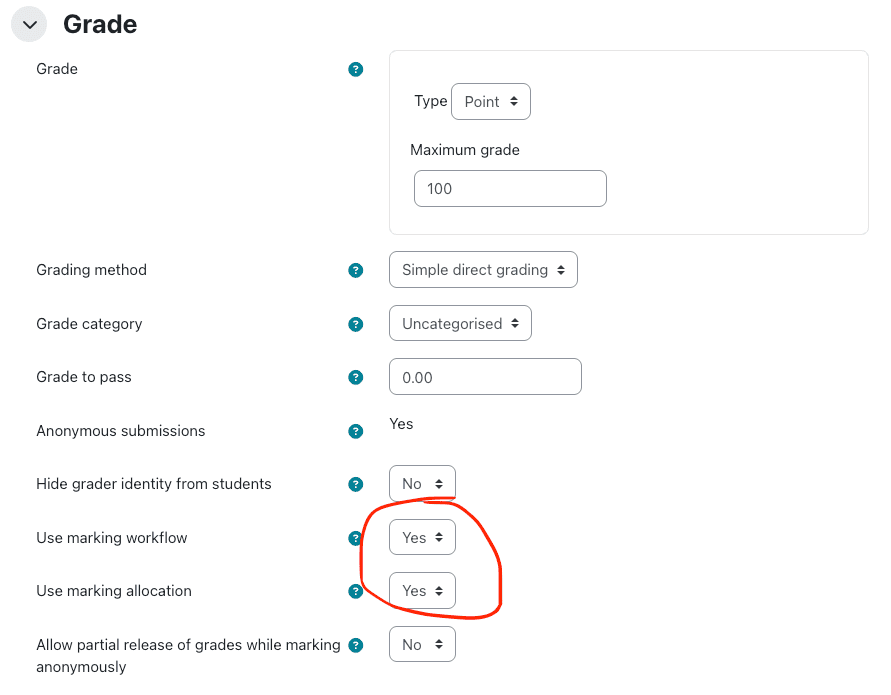
Once these have been enabled, you can allocate assignments to a marker.
- Click on your Assignment link
- Click on Submissions at the top
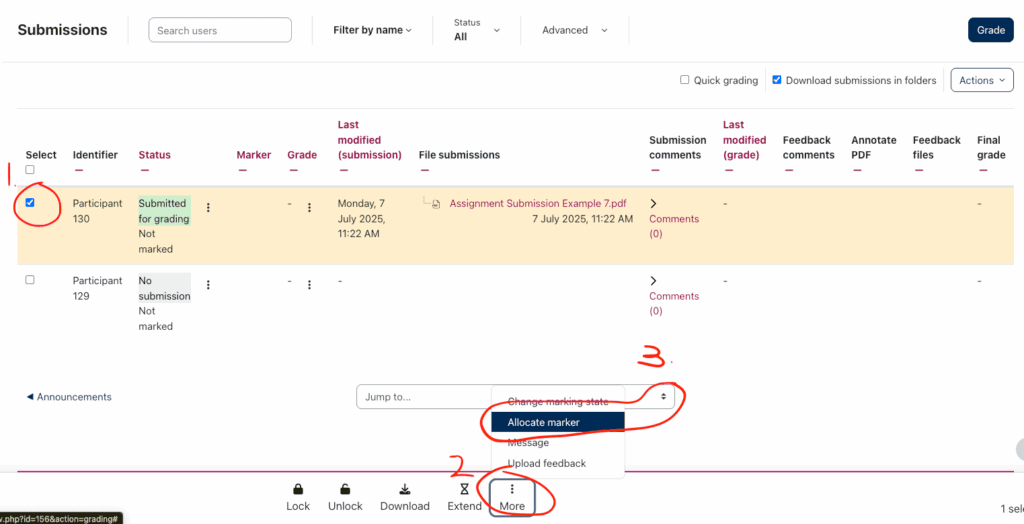
- Tick the box to the left of the student whose assignment you want to allocate, then from bottom menu, choose More and select Allocate marker.
- At the prompt select Allocate marker, then on the next page select your allocated marker from the drop-down menu and click Save Changes.
How to lift anonymity in an Assignment
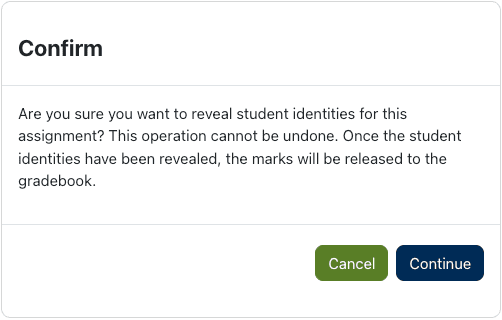
If anonymous marking is enabled, to release all grades and feedback, you will need to lift anonymity. Note that this is a one time action, that cannot be undone.
N.b. There was a significant change to Moodle in 2025 that allows you to release marks to students while keeping their identities hidden.
- In assignments with anonymous marking enabled, instructors can grade submissions and then release those marks without revealing student names.
- This means students can receive their grades and feedback promptly, while staff continue marking without bias or identifying information, for example if some students have extensions.

- Once Marking Workflow is set to ‘Released’, students will receive their grades and feedback, even if anonymity has not been lifted.
To lift anonymity:
- Click on the assignment link, then click on View all submissions
- From the top menu choose Reveal student identities
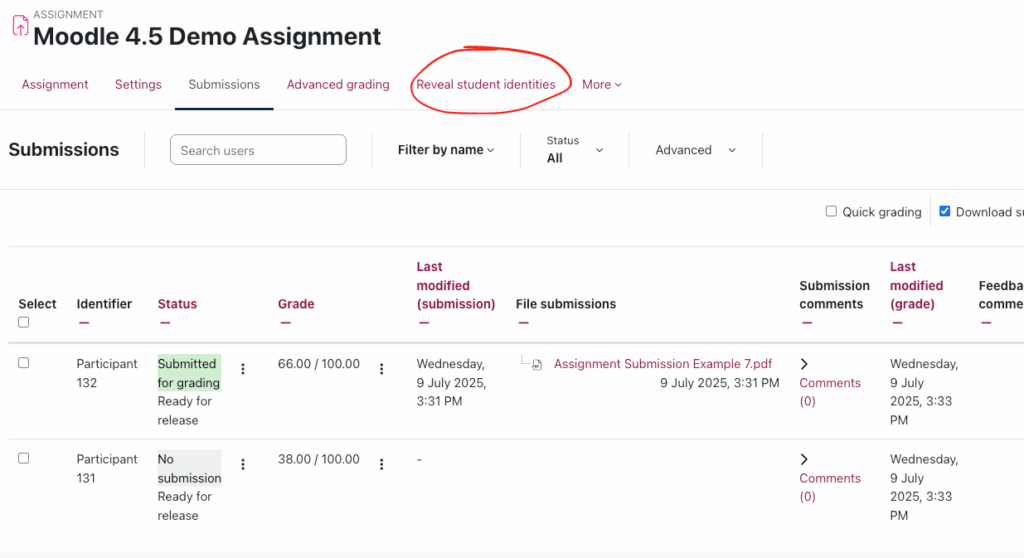
- Note the prompt information and Continue
Further Guidance
For more information, you can watch a recording of our TEL-Bytes Webinar on Entering Marks and Feedback below.
Watch in Panopto: Entering Marks and Feedback in Moodle (online and offline) [34:59]