
Published on: 16/04/2026 · Last updated on: 11/08/2026
What is Inspera Originality
Inspera Originality is the tool used to support academic integrity at Bath. It integrates with Moodle, with Inspera Assessment and files can be uploaded to it directly if needed.
While Inspera Originality helps to identify text matches between a student’s work and existing sources, it is designed to support academic judgement, not replace it. The tool can only process machine-readable text and so cannot be used for handwritten submissions.
Further information about Inspera Originality can be found on Inspera’s Help Centre. However please note that the implementation used at the University of Bath does not have translation checking or AI authorship detection enabled.
Enabling the tool on Moodle and Inspera Assessment
By default Inspera Originality will be enabled on all newly created Moodle Assignment submissions and Inspera Assessment exams. It can also be enabled on Moodle Quizzes.
- On Moodle, similarity reports will be generated for uploaded files to Moodle Assignments and text input and uploaded files to Essay questions on Moodle Quizzes.
- On Inspera Assessment, similarity reports will be generated for Essay question types (not Text Area) and Upload Assignment question types.
File formats
Inspera Originality supports many common text based file types including (but not limited to) .doc, .docx, .pdf, .txt and .html. For a complete list, see the Supported questions and file formats Inspera Help Centre article.
Navigating the report
The report is split into two main areas:
Submission panel (left):
Shows the student’s work with highlighted matches
Analysis panel (right)
Summarises findings through:
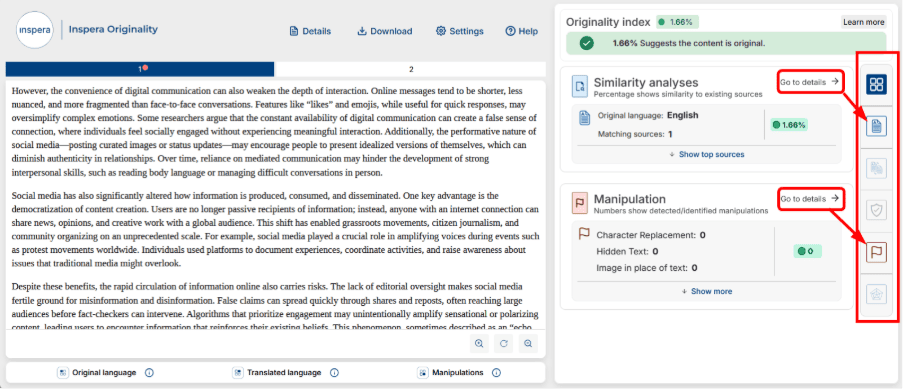
- Originality index (the overall % match)
- Similarity analyses (a breakdown of potential matches)
- Manipulation indicators (e.g. hidden characters)
We recommend that you use the icons on the far right (as highlighted) to quickly switch between views and to drill down into specific sections:
Further guidance on navigation:
https://support.inspera.com/hc/en-us/articles/25465246896413-Report-Buttons-Navigation-Tabs
Engaging with Similarity analyses
This section shows how much of the text matches other sources. Press the ‘Analyse original text’ icon to:
- View matched sources (the type of match will be colour coded in the document).
- See how text aligns with those sources.
- Check whether matches are properly referenced.
- Potentially problematic (e.g. copying or poor paraphrasing).
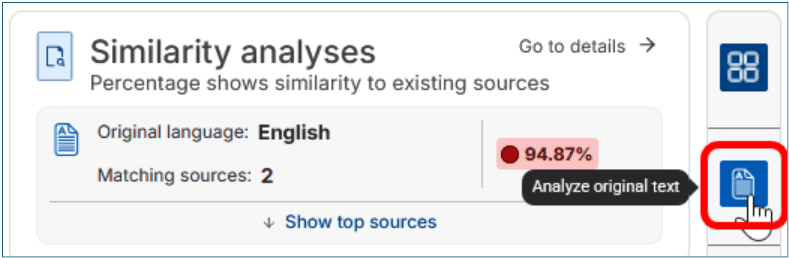
Matches can be excluded if needed (by clicking on the cross icon that appears next to them) and the sources can be filtered in a number of ways:

Note: a key to the colour coding can be found at the bottom of the document and that ‘Cited Text’ can be toggled on/off as needed:

Further guidance on matching sources:
https://support.inspera.com/hc/en-us/articles/15852859897501-Matching-sources
Engaging with Manipulation indicators
This section flags potential attempts to obscure text matching (e.g. hidden text or unusual character use). Treat these as prompts for closer review.
- Click on the ‘Flag’ icon (‘Detect signs of document tampering’) to see where issues may exist.
- Consider whether there is a legitimate explanation (e.g. technical notation, symbols, or Greek characters in STEM subjects may trigger false positives).
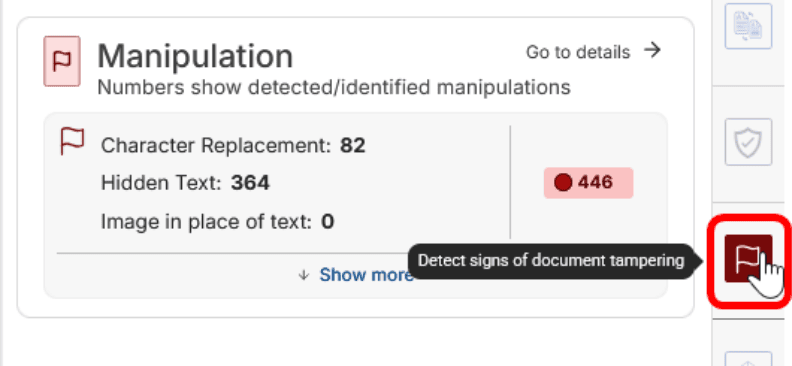
The manipulation card will expand to show where flagged items have been found (clicking on a flag highlights it in the document). Click onto the ‘Toggle Characters’ button to see and/or exclude specific character replacements:

Note: Manipulations do not impact the Originality index for the document.
Further guidance on managing manipulations (including ‘Hidden text’ and ‘Images in place of text’) can be found at:
https://support.inspera.com/hc/en-us/articles/25465385120413-Manipulation-Analysis-In-Depth
Video guidance
An Introduction to Inspera Originality training session was ran in April 2026 in advance of the move to Inspera Originality in May 2026. This training session covered an introduction and the necessary steps for users to take in the transition period.