
Published on: 14/10/2025 · Last updated on: 27/07/2026
What is the Feedback Centre?
The Feedback Centre is a new plugin for Moodle, developed in-house, to give both staff and students an overview in a single place, of the assessments set across a course of study. The Feedback Centre displays assessment data from the current academic year only, across all units being studied (without having to visit each separate Moodle space).
The aim is to allow students to see progression over the academic year, and more easily take feedback forward to plan their future study and revision activities. They will be able to review the feedback they receive over time and look for patterns in areas where they could need some added support. The data displayed can help inform conversations with Academic Advisers.
Additionally, the Feedback Centre allows certain staff roles to track assessments more easily in Moodle, allowing easier access to data. This can help inform discussions about the spread of assessments, pinch points or highlight consistent feedback practice.
Please note: The Feedback Centre is a work in progress. Further developments will take place over the coming year to improve its functionality and usefulness by integrating the multiple assessment types that exist within Moodle and adding views for additional staff.
Feedback Centre views
Your view of the Feedback Centre will vary, depending on the role you have in Moodle (whether you are a Student, a Unit Convenor or a Director of Studies).
- In this first version of the Feedback Centre, you will only see information about Assignments and Quizzes that have been set up in Moodle – other types of assessment will not be displayed for now (e.g. external tools).
- The accuracy of the data displayed is dependent on the settings chosen for each Assignment or Quiz, so please ensure you set up your assignments in line with our guidance, and specifically provide a due date for submissions in the current academic year.
- If you are using the Assignment activity in a non-standard way, we may not be able to represent this easily in the Feedback Centre, but please get in touch with the TEL team and we can discuss this further.
The view(s) available are determined by role information drawn from SAMIS. However, the conditions below will determine what each role sees.
Student view
Is the Student enrolled in the relevant Moodle unit spaces?
Are Assignments/Quizzes visible and have due dates set during the current academic year?
Assignments/Quizzes on those units should then appear in the Feedback Centre.
Unit Convenor view
Is the Unit Convenor enrolled in the relevant Moodle unit spaces in the Teacher+ role?
Are Assignments/Quizzes present and have due dates set during the current academic year?
Assignments/Quizzes on those units should then appear in the Feedback Centre.
Director of Studies view
Are Moodle unit spaces part of a SAMIS coded course? Is the DoS enrolled in a SAMIS coded course space?
Are Assignments/Quizzes present and have due dates set during this academic year?
Assignments/Quizzes on those units should then appear in the Feedback Centre, grouped by course.
What does each view contain?
Each view has been designed to provide useful information in one place.
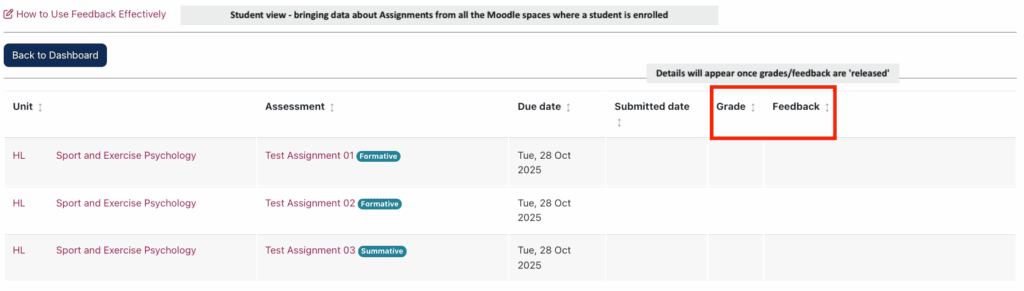
A Student will be able to see their assessments and feedback from across all their units of study in one place. The following will be displayed:
- The unit title
- The title of the assessment set
- Formative or summative tag
- The due date for the assessment
- The date the assessment is submitted
- The grade given for the assessment
- The feedback given for the assessment – either as a feedback comment or a link to a feedback file
- Any notes added by the Unit Convenor
- A text box for submitting reflections on feedback received
- Options to filter the data
For a quick overview, you can share this short video with your students: New in Moodle – The Feedback Centre
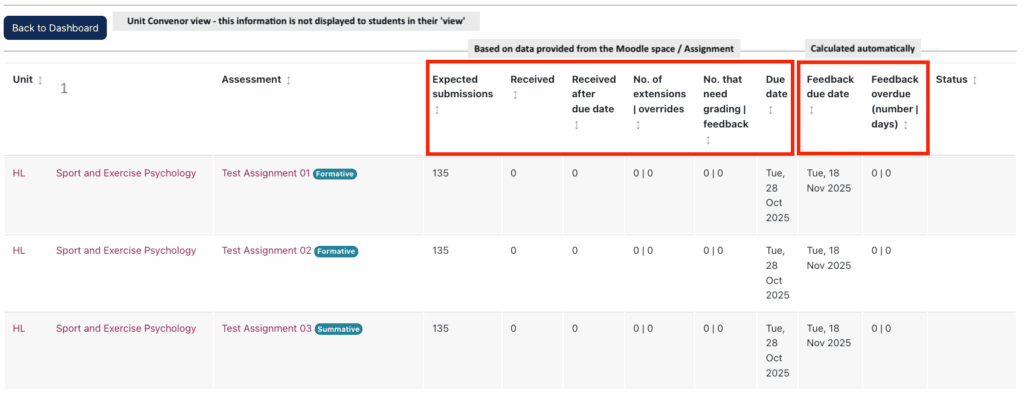
A Unit Convenor will be able to see all the assessments listed on their unit, or units, for this academic year. The view shows you the following:
- The unit title
- The assessment title and whether the piece is summative or formative
- The number of expected submissions
- How many submissions have been received (i.e. submitted to that point in time)
- How many submissions were received after the due date
- The number of extensions you’ve granted (if using the Moodle extension option)
- The number of submissions that still need grading and/or given feedback
- The date feedback is due to be released (this is automatically calculated as 21 days after the due date of the submission and does not take account of holidays and closure days)
- How many submissions are receiving feedback after the date it was due, and how many days after the due date that the feedback is released
- A text box for adding notes for students
- Options to filter the data
- Option to download the data in a CSV file
Please note:
If you have any suggestions to improve the view of the Unit Convenor, please send feedback via our short form and we can explore what is possible in future iterations of the Feedback Centre.

A Director of Studies will be able to access data on two pages: one to see a unit overview, and a second to drill down into further detail.
The overview will display:
- The unit title
- The unit convenor(s) responsible for that unit
- The courses on which the unit is listed
- The number of students on the unit
- The number of assessment points on the unit
- Options to filter the data
- Option to download the data in a CSV file
On this second page, accessed by clicking the Unit title link, the following will display.
- A list of the assessments in that unit
- The number of submissions expected
- The number of submissions received
- The number of submissions received after the due date
- The number of extensions granted (when Moodle extension functionality has been used)
- The number of submissions that need a grade or feedback providing
- The due date for the submission
- The feedback due date for the submission (automatically calculated as 21 days after the due date of the submission and does not take account of holidays and closure days)
- The number of submissions receiving feedback after the due date, and the number of days after the due date that the feedback is released
Please note:
If you have any suggestions to improve the view of the Director of Studies, please send feedback via our short form and we can explore what is possible in future iterations of the Feedback Centre
.
Accessing the Feedback Centre
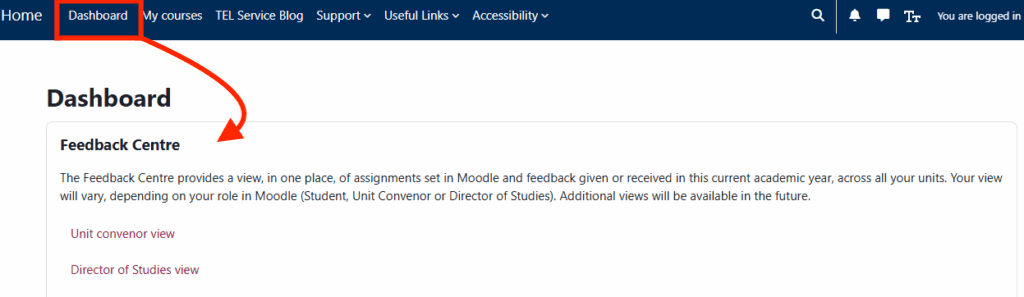
The Feedback Centre is available on the Moodle Dashboard (link in the Moodle header bar). You will be able to view feedback as a Student, Unit Convenor or Director of Studies, depending on which role or roles you have in SAMIS.
Future of the Feedback Centre
As a new plugin there will possibly be the need for some regular tweaks to ensure it works as intended. We also want to add some additional features soon, as well as gather views from staff and students.
- We plan to develop further views, for additional roles (potentially Director of Teaching or Academic Advisers).
- We also want to integrate more assessment types (e.g. Group Peer Evaluation, External tools etc).