
Published on: 12/09/2025 · Last updated on: 18/06/2026
Overview
Moodle extensions allow students to submit assignments after the due date without being marked as late. If a cut-off date has been set, this also lets students submit after that cut-off date. These instructions on adding student extensions to assignment activities support our recommended approaches for creating assignments.
It is possible to use Groups in Moodle to filter groups of students to apply the extensions to these students. This is essential for anonymous assignments and extensions where it is not possible to see the student’s name from the Submissions tab.
Add extensions for anonymous assignments
You must complete all three stages below to apply an anonymous extension, whilst maintaining anonymity and student privacy.
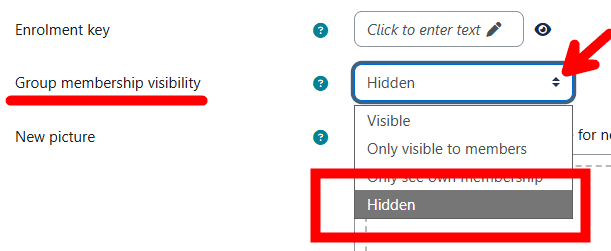
A. Create an extension group
Create and populate a Hidden group within your Moodle course. This hidden group includes students with extensions and helps maintain anonymity while distinguishing them from others.
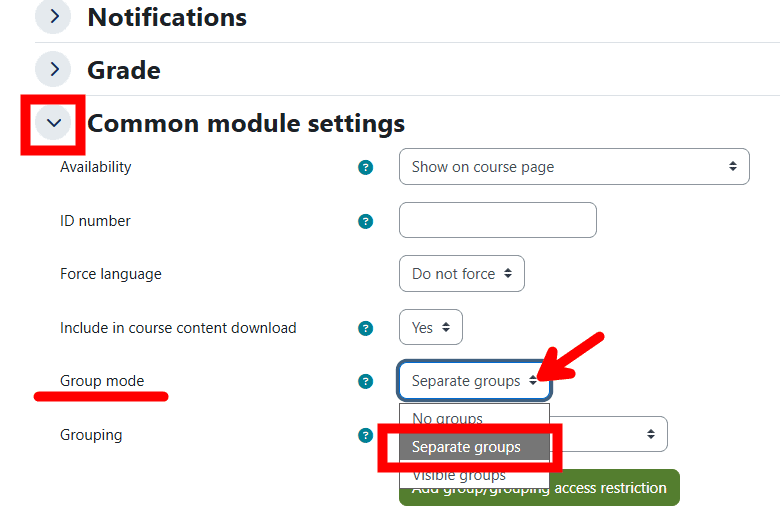
B. Apply the group mode filtering setting
- Go to the Assignment and Settings tab.
- Expand Common Module Settings and in the Group Mode select: Separate groups and then save
C. Filter the groups and apply the extension

- Go to the Submissions tab for the Assignment to view all submissions.
- Go to the Select separate groups dropdown menu and select the extension group name to filter students with an extension.
- Select all students in the filtered group with the checkboxes.
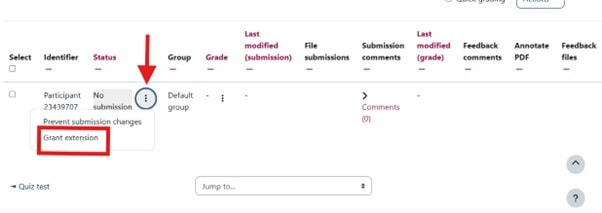
- Below the Participant list choose Grant extension.
- Repeat all stages above for extension groups with different extension times.
Add assignment extensions for non-anonymous student submissions
Follow these instructions to individually apply extensions to students, where the Assignment has not been set up as Anonymous Assignment.
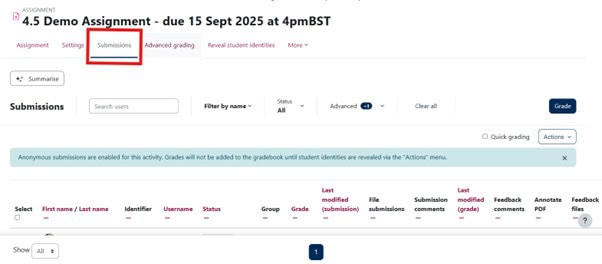
- Open the Assignment and go to the Submissions tab to view all submissions in the Grading Table.
- By default Moodle will accept submissions after the due date up until the (optional) cut-off date. (Any submissions received after the due date will be clearly marked as late).
- To grant an extension for an individual student, locate the student concerned, and click on the 3 dots dropdown in the Status column and select Grant extension.
- Repeat this process for all students requiring an extension.
Late submission with an extension
When a student is granted an extension, they can still submit after their extended deadline. Moodle will accept the submission and clearly mark it as late. The only exception is when a cut-off date has been set. If the cut-off date has already passed before the student’s extension deadline, Moodle will not allow the student to submit late.