
Published on: 05/04/2023 · Last updated on: 20/08/2026
Introduction
Students study multiple units at a time and are given access to a separate Moodle space for each unit. Within each unit lecturers will set activities with deadlines (i.e. a coursework assignment with a due date). Students can see an overview of their deadlines in a number of ways.
- In the Activities tab for the Moodle space
- In the Feedback Centre
- In the Moodle Calendar
- In the Timeline tab of the Moodle Dashboard
Important
The information students receive via Moodle relies on staff adding appropriate dates to activities. If activities are not added appropriately students will not get an accurate picture, for example:
- If due dates are not included on Assignments, then they won’t appear in the feedback centre, calendar or dashboard
- If due dates are created far into the future (instead of the actual submission date) students could be misled
- If due dates for submission points that only apply to a sub-set of students have not been restricted to a group (e.g. those taking supplementary assessment), then all students will receive reminders to submit, which could cause undue stress
Activities Overview tab
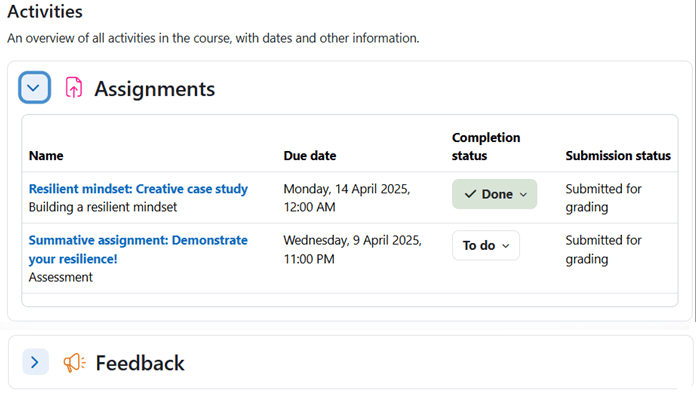
The Activities Overview tab appears on the main course page. It lists activity types present on the Moodle space, including Assignments and Quizzes.
For Assignments, students can see all Assignments on the course page, the due date, submission status and completion status (if activity completion is enabled).
Feedback Centre
The Feedback Centre displays assessment data from the current academic year, across all units being studied (without having to visit each separate Moodle space). The Feedback Centre is available on the Moodle Dashboard.
For a quick overview, you can share this short video with your students: New in Moodle – The Feedback Centre
Students can see progression over the academic year, and more easily take feedback forward to plan their future study and revision activities. They can review the feedback they receive over time and look for patterns in areas where they could need some added support. The data displayed can help inform conversations with Academic Advisers.
Timeline tab of the Moodle Dashboard
In the Dashboard students can view the Timeline tab where they will see a list of activities with deadlines. They can customise this list to view ‘by course’ and over differing timescales (All, Next 7 days, Next 3 months, etc.). This provides an overview of all deadlines across multiple units.
Below is a hot spot screenshot on how students can view their activity deadlines through the Timeline on the Dashboard.
Moodle Calendar
Any activity or event that has a due date will appear in the Moodle calendar. If required there is a way of adding the Moodle calendar to Outlook as a shared calendar. This will provide an overview of all deadlines across multiple units.
Add your Moodle calendar to Outlook by:
- Visit the Moodle dashboard, and below the calendar, in the right-hand block panel, click Import or export calendars.
- Click Export calendar button.
- Choose suitable events to export and time period.
- Click Get calendar URL, and copy the URL that is generated for you.
- In MS Outlook, open your calendar, and click the Add calendar link.
- Select the Subscribe from web option and paste in the Moodle calendar URL.
- Give the calendar a name and click Import.