
Published on: 20/08/2025 · Last updated on: 20/08/2025
What are marking guides?
Marking Guides are grading forms that can be used in Moodle Assignments and Forums.
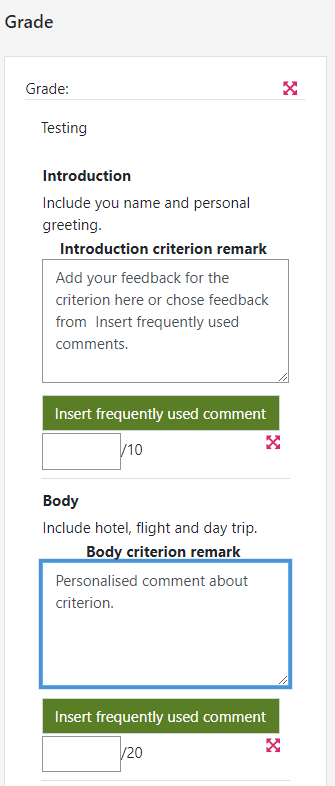
Marking guides allows Teachers to define a grading form with specific criteria, and choose how many marks to award for each. Feedback comments can also be included.
In this example marking guide, you can see predefined criteria, with allocated marks and space to enter feedback comments
How do staff and students use it effectively?
Clear marking criteria will help students understand what any particular assessment task is looking for. Marking guides and Rubrics can help ensure assessment guidelines, success criteria and next steps are clear for students and staff.
Staff can decide which options they use when setting up their Marking guide or Rubric but we would recommend you consider the following:
- Choose the setting to make the criteria descriptions visible to students in advance, and let them know that they can view these by accessing the assignment submission point. You may need to highlight to them how to view the marking criteria at the early stages.
- If you’re using the Rubric or Marking guide for formative feedback, you can choose to hide the points awarded from students.
- It’s important to include feedback comments and to personalise the feedback provided. You can choose how to use the rubric and marking guide in combination with feedback comments. You can either have feedback comments for each assessment criterion, or you can make an overall feedback comment.
How to set up a Marking Guide
Watch this short video [7 mins] which demonstrates how the set up a Marking guide:
Marking guide – Advanced marking in Moodle video
Downloading marked grading forms
Although you can see completed marking guides inside of each student’s grading page, it is also possible to see and download the associated grades and feedback for all your students in one go.
- In the Course navigation menu, click onto the Grades tab
- Select Marking Guide Report from the drop down menu at the top of the page
- Select the activity you wish to view the feedback for and press the Submit button
All relevant grading information appears on the screen, and can be downloaded for offline review.
Reusing grading forms
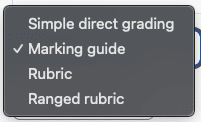
The Advanced grading tab within an assignment or forum activity enables Moodle Teachers to select or switch between grading methods. If you have selected an advanced grading method on this page (rubric, ranged rubric, or marking guide) a management screen will appear.
To use an existing marking guide, select Create new grading form from a template.
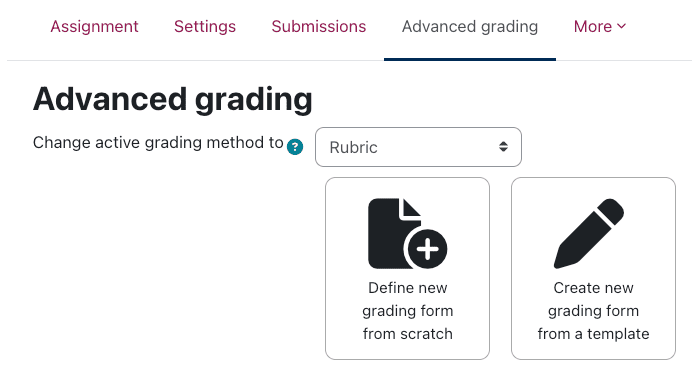
By default, a number of pre-defined templates will appear, however a search function located at the top of the page will enable you to search for and reuse your own rubrics and marking guides.

Sharing grading forms with others
At the current time, there is no export/import option for marking guides, however the workaround is to create a new activity (such as an assignment) and attach the relevant grading form to it. You can then create a backup of this activity and share the resulting .mbz file with others.
By restoring the activity, the attached grading form is restored too.
FAQs
Further reading
- Moodle Doc: Advanced Grading Methods
- Brookhart, S.M., Chapter 1. What Are Rubrics and Why Are They Important? [Online] Chapter Preview In: How to Create and Use Rubrics for Formative Assessment and Grading, USA: ASCD. Available from: www.ascd.org