
Published on: 05/09/2023 · Last updated on: 14/09/2026
Introduction
Accessible means something is usable by as many people as possible, regardless of their cognitive, physical or cultural situation. Accessibility can mean many different things to different people, as the students in these videos explain.
Why care about accessibility?
We have a responsibility as educators, to create resources and teaching that don’t disable people.
Accessible teaching benefits everyone, not just those with specific ‘labels’.
There is also a legal requirement to ensure digital accessibility:
- The Equality Act 2010 requires equitable access to education.
- The Public Sector Bodies Accessibility Regulations (2018) require digital content to be accessible.
- The University of Bath’s digital accessibility policy sets expectations for staff creating or managing content.
This applies to anyone uploading content, managing platforms, or selecting digital tools.
What is Digital Accessibility?
Digital accessibility means making websites, apps and their content (e.g. uploaded content to Moodle) accessible to users and is written into UK law. There are many different areas and aspects of digital accessibility, including the Web Content Accessibility Guidelines (WCAG 2.1 AA) which are international standards and define what is legally needed for accessibility.
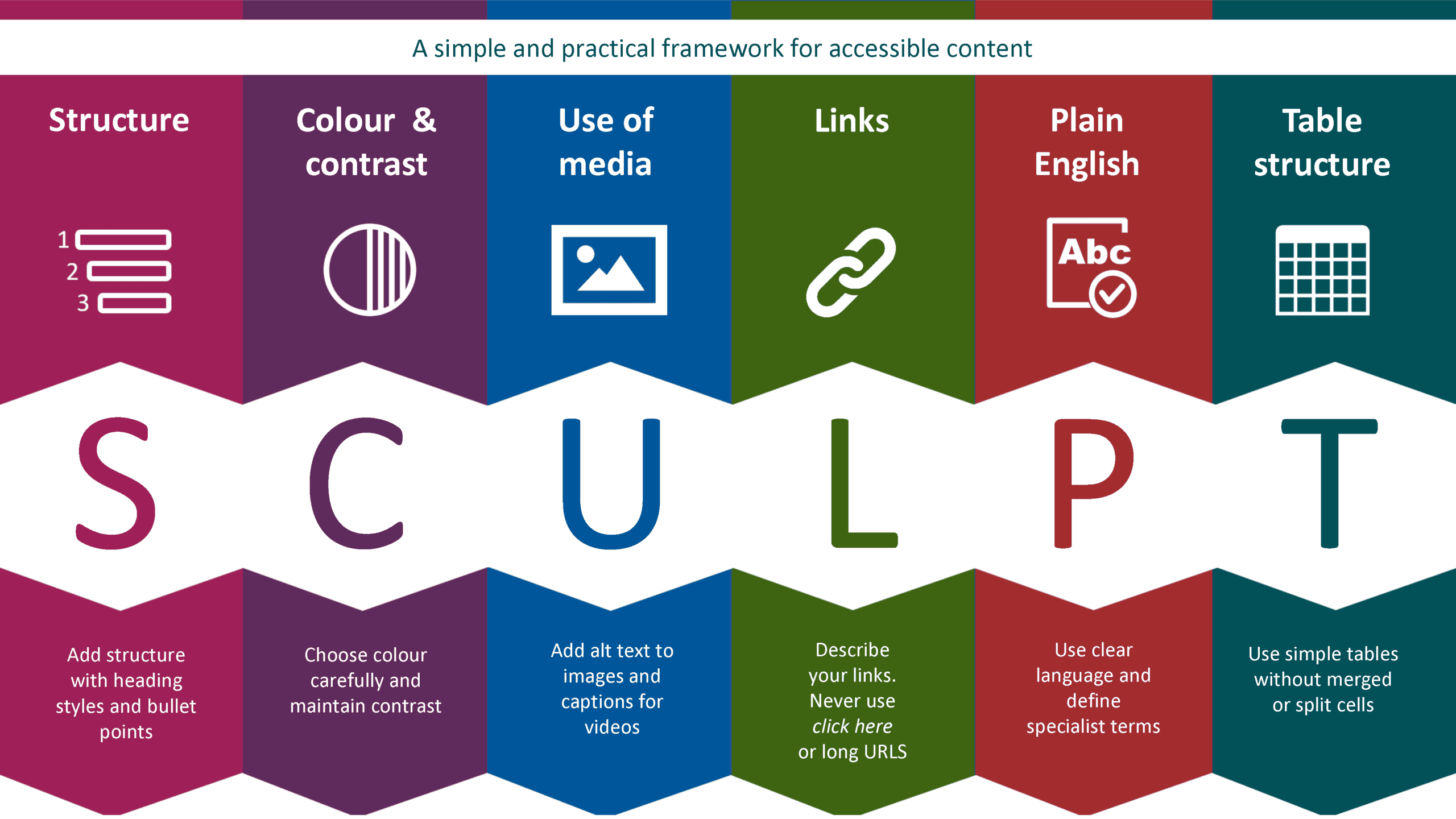
One framework that can be helpful to consider is the SCULPT framework for accessible document creation – this acronym represents six basic areas to consider:
- Structure: add structure with heading styles and bullet points
- Colour and contrast: content must be readable for users with low vision or colour blindness
- Use of media (images, video, audio): add alt-text to images and captions for videos
- Links: describe your links, never use Click here or long URLs
- Plain English: use clear language and define specialist terms
- Tables: use simple tables for data without merged or split cells
What are examples of accessible practices?
- Use plain English to support students with dyslexia and non-native speakers
- Provide clear instructions to improve understanding and reduce cognitive load
- Add accurate captions to videos to support hearing-impaired students and improve comprehension for all
- Use colour accessibly by combining colour with labels or patterns
- Structure documents properly using headings for navigation
- Offer flexible ways to participate to support different needs
Where to start with digital accessibility for learning and teaching?
Begin with understanding the key SCULPT accessibility principles. Then use the Accessibility checklists to help you prepare accessible outputs.