
Published on: 23/10/2026 · Last updated on: 23/10/2026
What is the Menti activity in Moodle?
The Mentimeter activity lets you add a Menti to your Moodle space so that students join it with their Moodle login and their results can be sent to the Moodle gradebook against their name. The following guidance assumes existing knowledge of Mentimeter. If you are new to Mentimeter please visit our starter guidance or attend a Mentimeter training webinar.
Menti in Moodle differs from sharing a normal Menti link or code in three ways:
- Students do not need a Menti account and are identified by their Moodle login, so responses are not anonymous to teachers.
- Attendance, participation or quiz scores can be synced to the gradebook.
- Students join through Moodle, not with a Menti code or QR code.
Should I use it?
Use the Menti activity when you need Moodle-authenticated attendance, participation or quiz data. For anything else, a standard Menti link is usually simpler for you and your students.
| If you want to… | Use |
| Record named attendance or participation in the gradebook | Menti activity in Moodle |
| Run a live quiz competition and record each student’s score | Menti activity in Moodle (presentation mode) |
| Run quick, anonymous polls or word clouds in class | Standard Menti link or code |
| Get students joining fast on their phones | Standard Menti link or code |
| Set a graded quiz students can review afterwards, with correct answers and feedback | Moodle Quiz |
| Set a self-paced quiz with correct answers revealed | Moodle Quiz |
Before you start
What Moodle receives depends on the Menti mode and slide types you use. Real quiz scores come only from quiz competition slides run live in presentation mode.
| Menti mode | How students take part | What can sync to Moodle |
|---|---|---|
| Presentation, with quiz competition slides | Live, following your slides | Quiz score, attendance or participation |
| Presentation, no quiz slides | Live, following your slides | Attendance or participation |
| Survey (self-paced) | In their own time | Attendance or participation only (quiz competitions are not available) |
| Anonymous Menti, no quiz | Either live or in their own time | Nothing (access is still logged in Moodle) |
Adding a Menti to your Moodle space
You can link a Menti you already have or create a new one from Moodle.
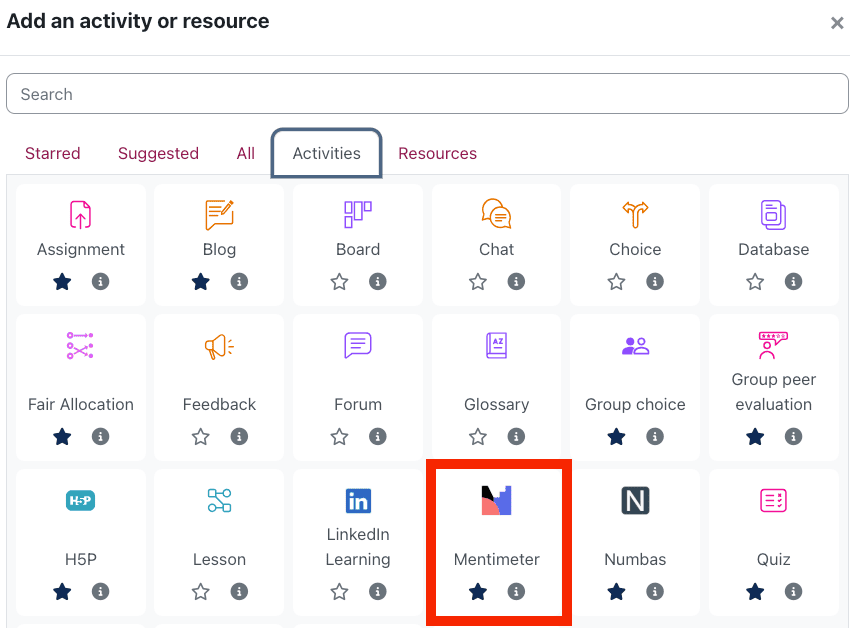
- Turn editing on and choose Add an activity or resource > Mentimeter.
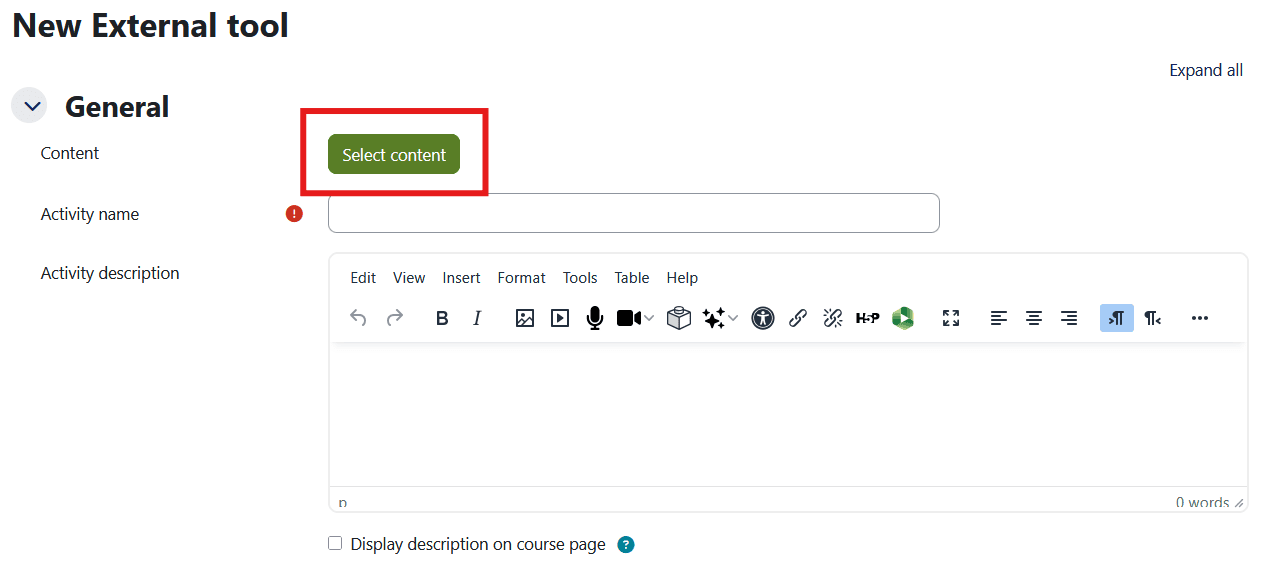
- Click Select content and either pick an existing Menti or create a new one.
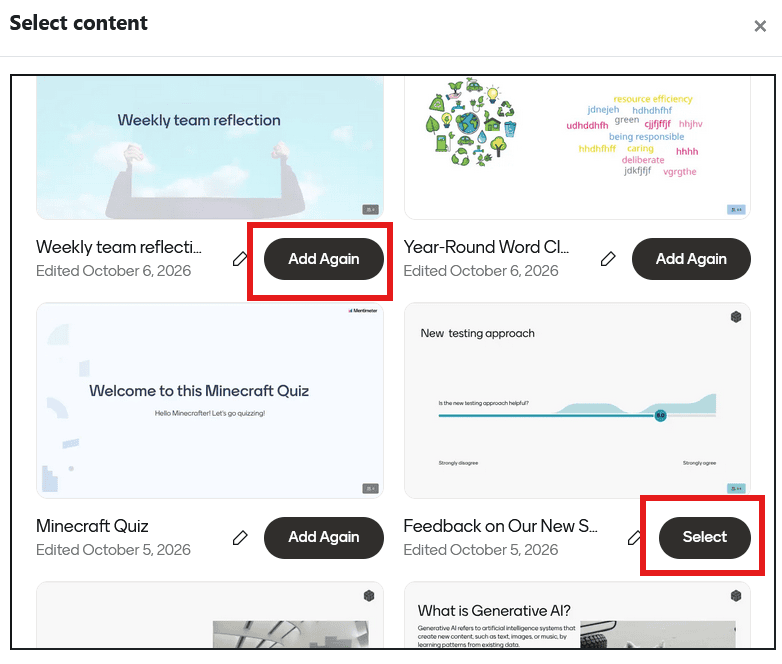
- If the Menti presentation you want to select has already been used before in Moodle, you are offered the option to Add Again. If you accept this option you can Duplicate & Add. This is recommended to avoid potential problems with overwriting answers (i.e. so earlier results are kept separate).
- If the Menti presentation has not been used before in Moodle, you can click Select.
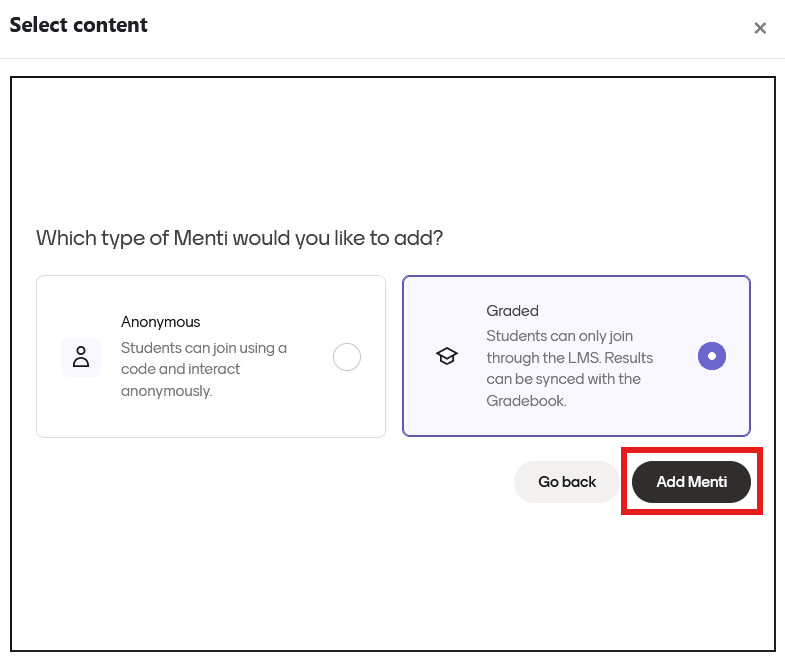
- Decide if you want the activity to be Anonymous or Graded. Click Add Menti and the connection to your Menti will be created. You will return to the Moodle external activity settings.
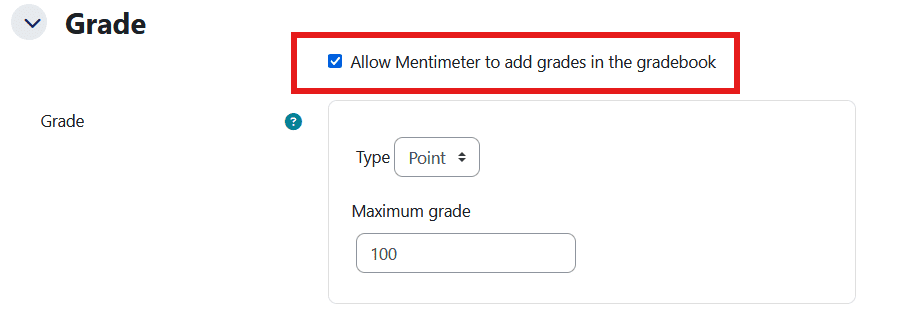
- If you decide to grade students, check under Grade that the Allow Mentimeter to add grades in the gradebook is ticked.
- If you decided to select Anonymous, students can also join using a code and interact anonymously.
- Save and return.
Preparing for a live Menti session
Students can open a visible Menti activity before the session starts. If the first slide is interactive, they can answer it early and then get stuck.
- Hide the activity, or restrict access, until you are ready to present. Alternatively, make the first slide a content slide (e.g. a title slide).
- Tell students in advance to log in to Moodle before the session. They join through the Moodle activity, not with a Menti or QR code.
- If you present from PowerPoint, add the same Menti to your slides with the Mentimeter add-in. Results are still collected in Moodle.
- Use quiz competition slides if you want scores in the gradebook.
Asynchronous Menti activities
Students can complete a self-paced Menti in their own time, and there is no grade sync.
- Setting it up: Got to the Settings icon at the top of the page, and select Survey from the options. If you can’t find the setting, ask Mentimeter’s AI assistant to make the activity asynchronous.
- Limits: Students can’t review a completed quiz, and there is no way to reveal correct answers to students working asynchronously. If either matters, use a Moodle Quiz instead.
- Viewing results: For non-quiz Mentis, students who return to the activity can view the results.
Syncing Menti results to the Moodle gradebook
Nothing appears in Moodle until you choose Sync to LMS in Mentimeter.
- Once you have some results, open the Menti in Moodle and from the Results tab choose Sync to LMS. For results to register, students must have joined the Menti through Moodle. Grade sync is not available for anonymous Mentis.
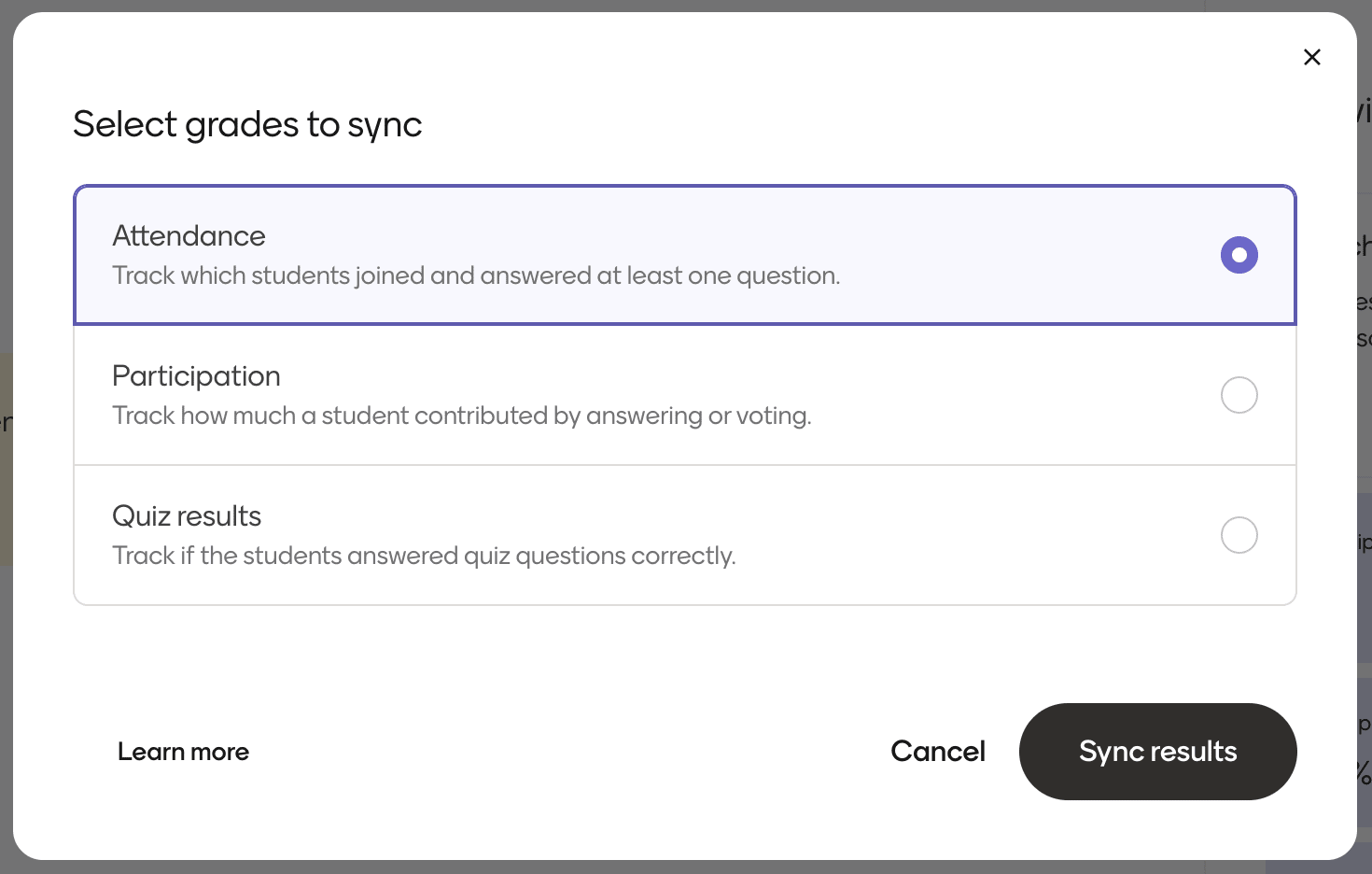
- Choose what to send: attendance, participation or quiz score. Choose attendance if you only need to know whether students joined and answered at least one question, or participation if you want to grade students based on how much they contributed across the Menti. Choose quiz accuracy if you want to grade students based on correct answers to quiz questions.
- Note down which grading option you chose. Once syncing starts, you may not be able to check it in Menti. It may be helpful to add it to the activity description. (E.g. this activity will record participation / attendance).
- Check the Moodle gradebook to confirm the grades have arrived.
- Note that re-syncing grades will overwrite the previous synced grades.
See Mentimeter’s grade syncing options.
Working with colleagues
Staff enrolled in your Moodle space retain their normal role, but note this does not filter through to Mentimeter. All staff in your Moodle space will have editing access when they click on the Menti from Moodle. Menti owners can change this to ‘view’ only, after the staff member has initially accessed the Menti.
- In your Menti, click the person’s profile icon (left of the Preview button) and change Can edit to Can view.
Note on duplicating: duplicating a Menti activity in Moodle results in a copy of the Moodle link, not the actual Menti. Both copies of the activity will point to the same Menti.
What students will see
Students click the activity in Moodle and Menti opens in a new window, already signed in with their Moodle login. Should you wish to test the student experience, use the “Switch role to…” function in the top right corner of the Moodle page.
- Presentation (live) sessions: The first slide of your Menti will display to students even if you haven’t started the presentation. Once you have started the presentation their screen moves with your slides. They can participate as usual, answering questions, poll and quizzes as in a normal Mentimeter session. Their attendance, participation rate and responses are saved automatically.
- Survey (asynchronous) sessions: Students can go through the slides at their own pace. They can only move forward through the slides, but once they have finished viewing the slides they can relaunch the activity and view it again. Students will not be able to view the results of any questions answered.
- QR code or share button: This appears inside the activity but won’t let anyone else join. Anyone who scans it sees “Open Menti from your LMS platform”.
- Rate this prompt: Students may be asked to rate the activity each time they revisit it, even if they have already rated it. They can ignore this.
Troubleshooting and FAQs
| Problem | What to do |
|---|---|
| “An error occurred” (deep_link_not_found) when opening the activity | The activity was saved without Menti content. Edit the settings, select content and save. |
| Menti says the sync is still in progress | Check the gradebook. Grades usually arrive even while Menti shows it as syncing. |
| No grades in the gradebook | Check that you chose Sync to LMS in Menti. For scores, check you used quiz competition slides in presentation mode. Check that the Menti is not anonymous. |
| A student can’t open the activity | Check they are logged into Moodle in the same browser |
| Students answered before the session | Hide or restrict the activity until you present, or start with a content slide which they can’t move beyond. |
| A student wants to review their quiz answers | This isn’t possible in the Menti LTI. Use a Moodle Quiz if review matters. |
See also Mentimeter’s LMS integrations FAQ.
Further help
- How to add and sync Mentis in Moodle LMS (Mentimeter Help Centre)
- Grade syncing options for LMS sessions (Mentimeter Help Centre)
- How to use Mentimeter with PowerPoint and an LMS (Mentimeter Help Centre)
- LMS integrations FAQ (Mentimeter Help Centre)
- Contact the TEL team for support.