Published on: 08/09/2023 · Last updated on: 07/10/2026
What is the Moodle Accessibility+ toolkit?
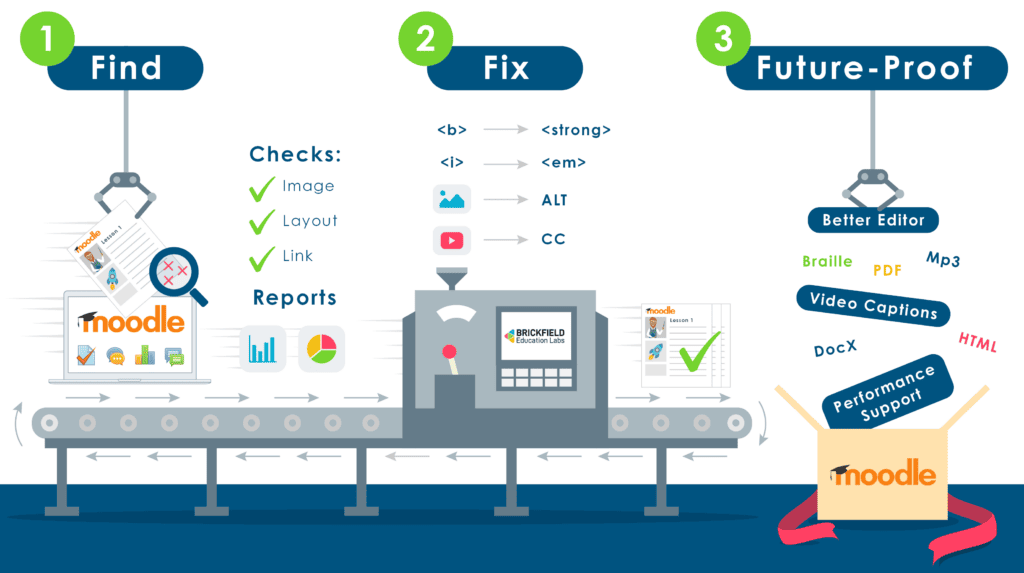
The Accessibility+ Toolkit is a Moodle tool that helps staff identify, fix, and prevent accessibility issues in their course content. It checks accessibility wherever the Moodle text editor is used, including Books, Pages, activity descriptions, and quiz questions in the Question Bank.
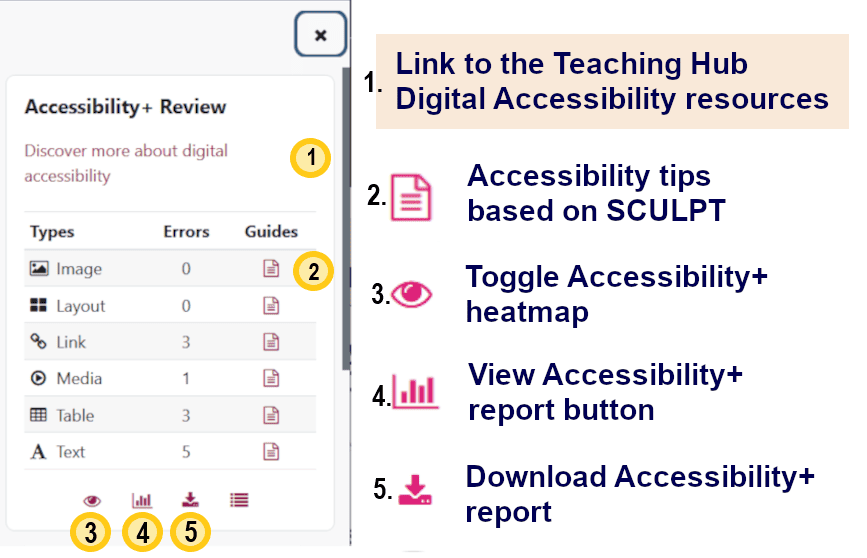
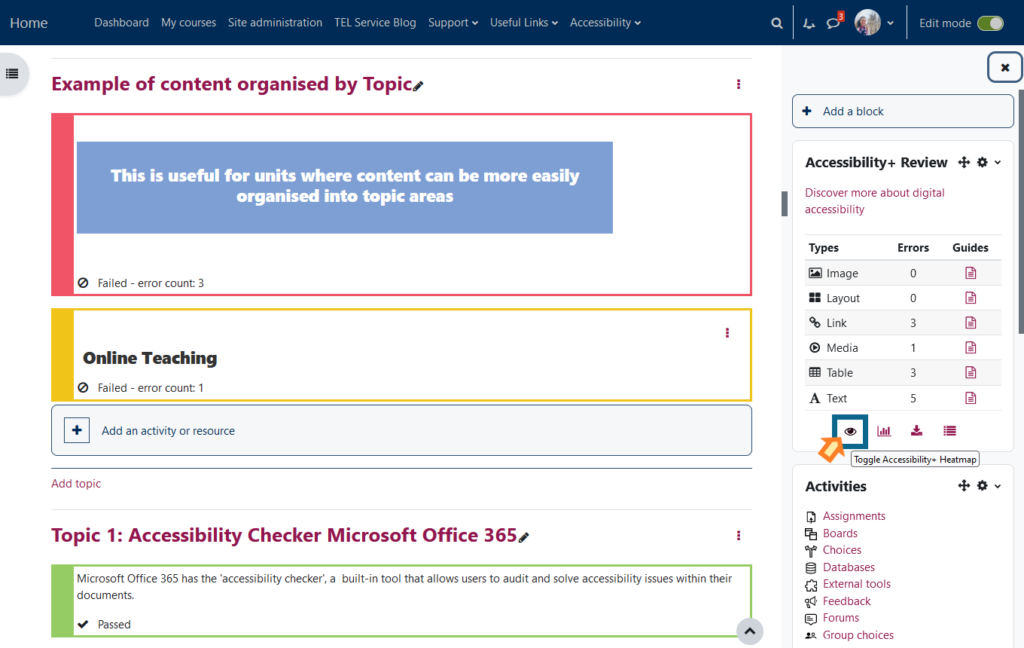
You can access the Accessibility+ Review block from the block drawer on the right-hand side of your Moodle course. The Accessibility+ Review block and accessibility heatmap are only visible to users with a Teacher role and are not shown to students.
Use the eye icon to show or hide the heatmap, which highlights accessibility issues within your course. Select the page icon to view accessibility guidance and recommendations for each issue, helping you understand how to improve your content.
How do I use the Accessibility+ Toolkit?
Use the heatmap to find issues
When enabled, the accessibility heatmap overlays your Moodle course and highlights the accessibility status of content and activities. Items with no identified issues are marked as Passed in green, while items with potential accessibility issues are highlighted in amber or red.
You can show or hide the heatmap at any time by selecting the eye icon in the Accessibility+ Review block.
Remember: The heatmap only checks content created directly within Moodle. Uploaded files, such as Word documents and PowerPoint presentations, are not assessed by the heatmap. To check these files for accessibility issues, use the Microsoft Office Accessibility Checker before uploading them to Moodle.
Note: The Accessibility+ Review block and heatmap are only visible to users with a Teacher role. They are not displayed to students and are designed to help staff identify and address accessibility issues within their Moodle courses.
View the accessibility Reports
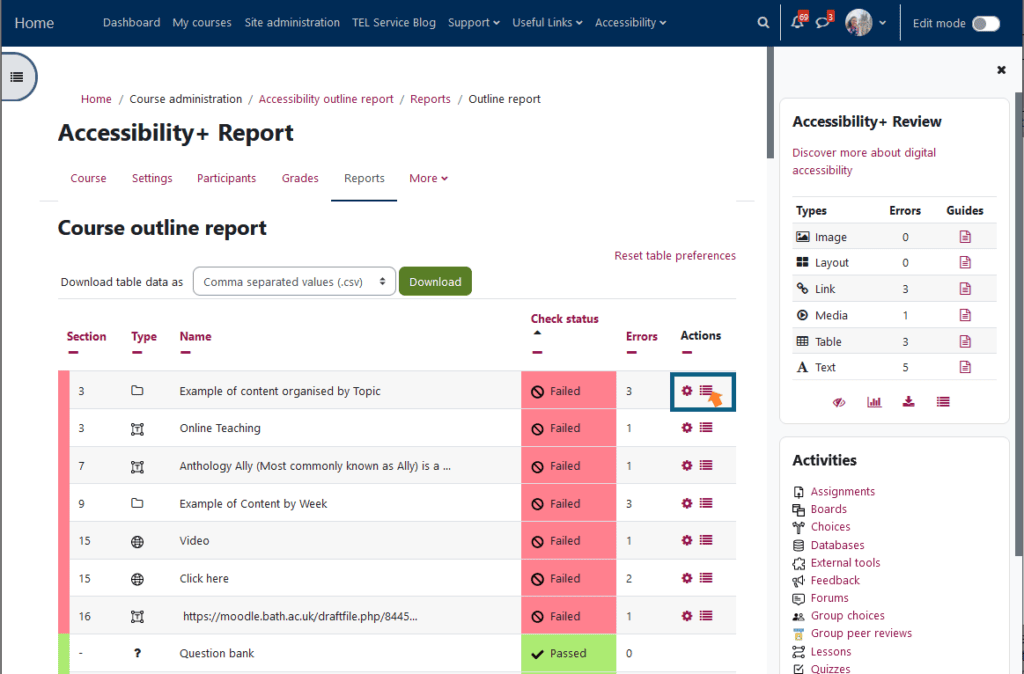
Select the bullet list icon in the Accessibility+ Review block to open an accessibility report. This report provides an overview of the issues identified within your Moodle course, allowing you to review and prioritise areas for improvement. An example of this report is shown in the image below.
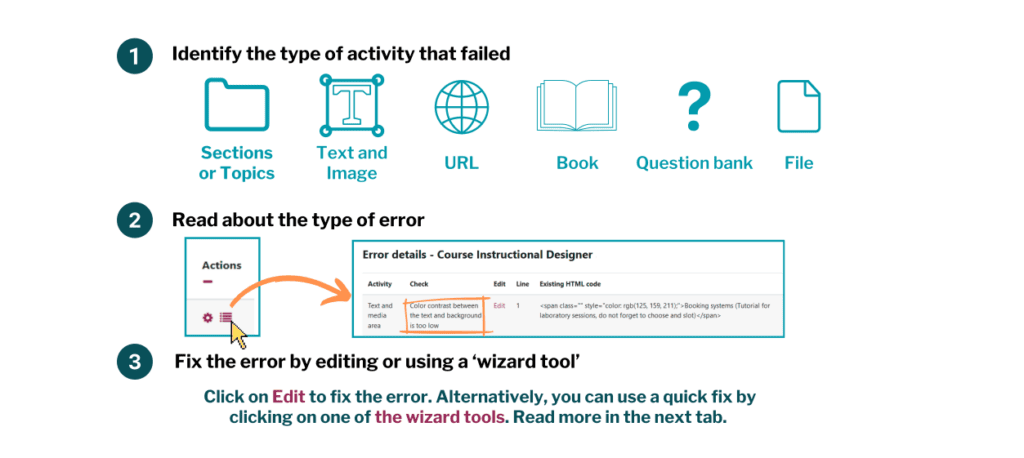
Using this report you can apply this 3 steps to fix the errors:
Use the Wizard to fix accessibility issues
The Accessibility+ Toolkit can identify a wide range of accessibility issues within your Moodle content. To help you resolve these efficiently, it includes a series of built-in wizards that guide you through the process of applying fixes. These tools can help you address multiple issues quickly, while also providing helpful accessibility guidance and best practice tips.
To access these features, select the graph icon in the Accessibility+ Review block. This will open Brickfield Enable, where you can explore detailed accessibility reports, review identified issues, and follow the suggested fixes to improve the accessibility of your course content.

Brickfield Accessibility Checker toolkit (text editor)
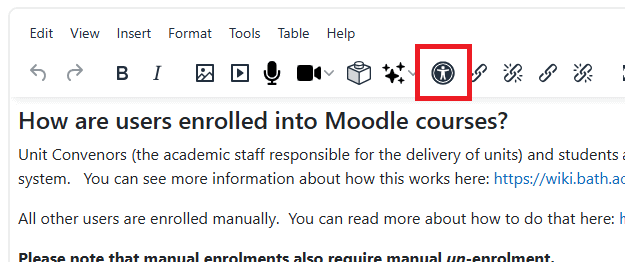
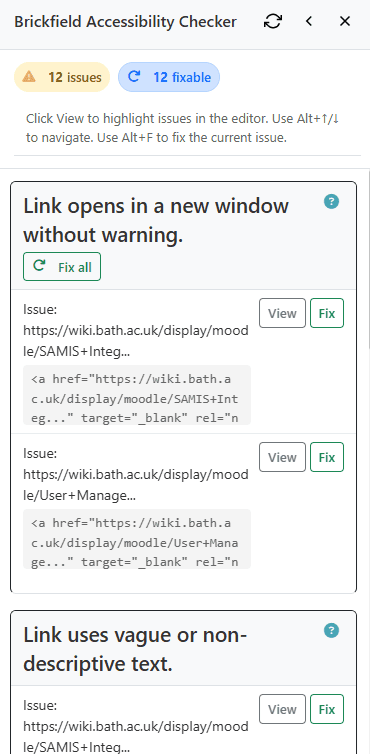
The text editor in Moodle has an accessibility checker, Brickfield Accessibility Checker toolkit, which can be used when creating or editing Moodle content. View and fix accessibility issues before publishing.
The checker highlights issues such as:
- Missing alternative text for images.
- Empty paragraphs.
- Poor colour contrast.
- Headings formatted manually instead of using heading styles.