Published on: 30/06/2023 · Last updated on: 06/10/2026
Build template pages
In Mahara terms a template is a pre-created page, or collection of pages, that others can copy to use for themselves.
- You can create any page or collection and allow it to be copied, acting as a template.
Templates can be a useful timesaver for students. Importantly they provide helpful scaffolding for students when they first start to build an e-portfolio.
You can create a template from your list of Portfolios:
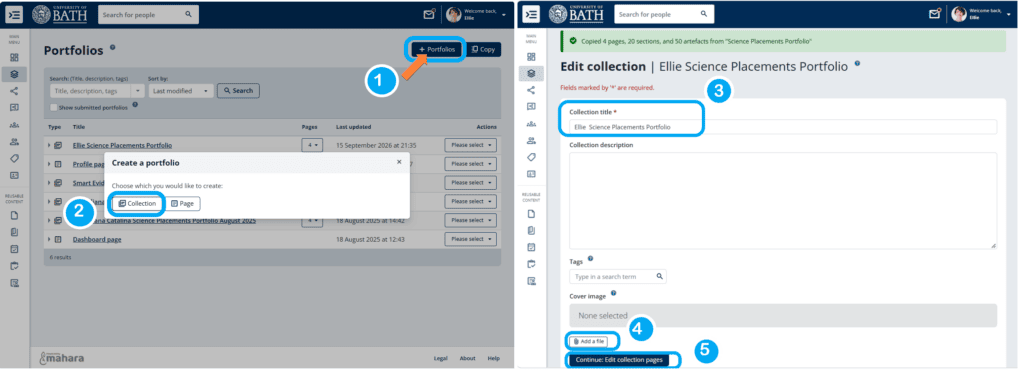
- Main Menu > Portfolios > +Portfolios button (1).
- First create the Pages which will form your portoflio. In the pop-up window, select Page.
- Once you have created a series of pages, create a new Collection.
- In the new window, edit the name of the Portfolio (3), add a cover image (4) and click continue (5).
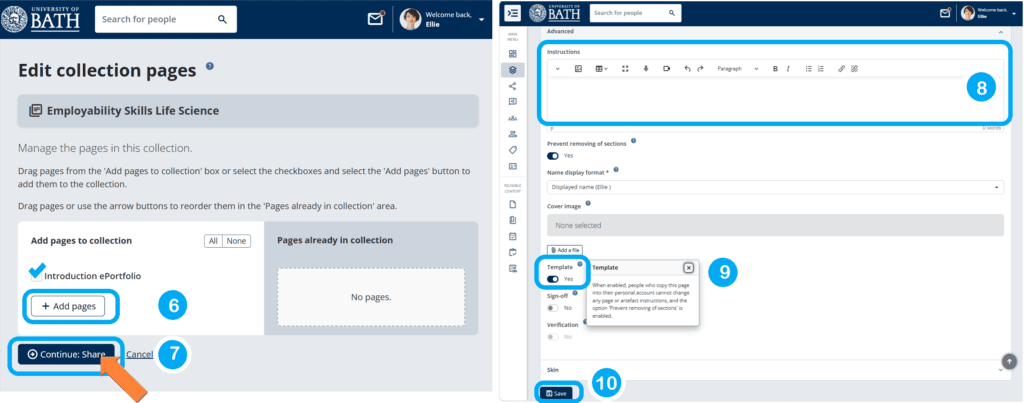
- Add selected Pages to your Collection (6) and click continue (7).
- Edit the settings as appropriate (8), changing the Template option to Yes if required (9).
- enabling the Template option prevents students from modifying instructions or removing sections, to lock content in place. This can cause issues if students want to remove a section from a Portfolio page (for example they have added a section in error). You can still share the Portfolio for copying without enabling Template option (providing more flexibility for students to manage their portfolio pages).
- Click Save (10).
When building a template consider:
- Adding an instruction block and locking it in place. Students will not be able to delete this but will be able to use an accordion to expand or collapse the instructions.
- Choose a layout that suits the template you have in mind.
- Build the template by adding relevant sections to the page, and typing in the structure you wish the students to see and edit (e.g. using section titles and instructions)
- For example, you might present them with a task and relevant space to complete it. Alternatively, you may provide a table for them to complete. You can view the completed template by displaying the page, from the display icon on the right-hand side of the page.
Finally, you can make the template available to students. Contact the TEL (Technology Enhanced Learning) team at tel@bath.ac.uk. We can share a copy of your template at site level. This is an effective way of ensuring there is only one up to date template and avoids issues if the staff member is unavailable or leaves the university.
Creating Pages and adding to a Portfolio
Create Pages
- From the Main Menu select Portfolios, then +Portfolios button (or Copy to use another page as a starting point.)
- Select Page.
- You need at least one page to create a Portfolio (which is a collection of Pages). Once you have created a Collection, you can Add Page to create a new page directly within the Collection.
Create Portfolio and add the relevant Pages
- To place your Pages into a Portfolio, From the Main Menu select Portfolios, then +Portfolios button
- Select Collection.
- Name the Collection and change other settings as appropriate.
- Click the Next: Edit collection pages button.
- Select the pages you want to add to the portfolio and click the Add pages button.
- When finished click Next: Edit access.
- Choose the appropriate settings to Share with others, then select Save.
- Select the newly created Portfolio and you will see the pages displayed in the left hand menu
Allowing students to copy a template
- From the Main Menu select Portfolios.
- Select the Page or Portfolio and from the Actions menu click the Share button.
- Under the Advanced options drop down menu you will see an option to Allow copying.
- Change this to Yes.
- Scroll down to click Save.
- Contact TEL Team at tel@bath.ac.uk. We will provide instructions to share a copy of your template at site level.
How does a student take a copy of the template
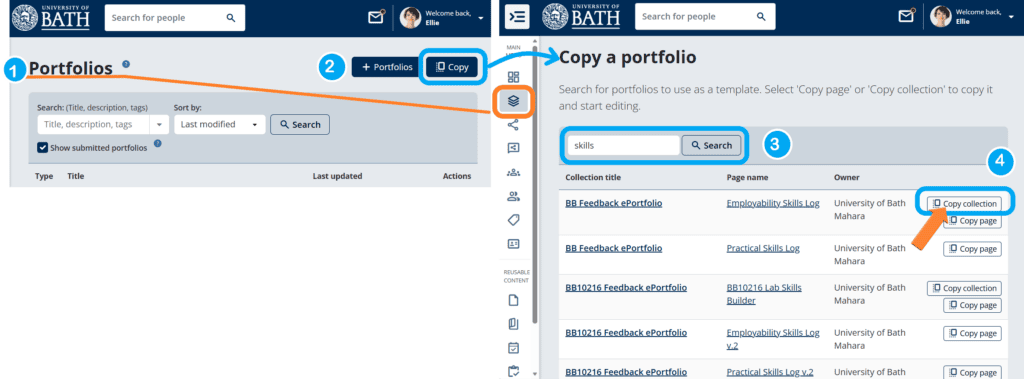
Students can navigate to their Portfolios area and click the Copy button and search for the Collection. Tell them the name of the Portfolio shared at site level, so they can search from available templates. When found, they can select the Copy collection button.